Add a New Supplier
This guide walks you through the steps to add a new supplier in the Spothire dashboard. Follow these steps to ensure that all necessary information is correctly entered.
Steps to Add a New Supplier
-
Navigate to the Suppliers Dashboard
- Log in to the Spothire dashboard.
- Go to Masters.
- Under Masters, select Suppliers
-
Open the Add Supplier Form
- Click on the + Add Supplier button to open the form to fill the supplier details.
1. Fill in New Supplier Details
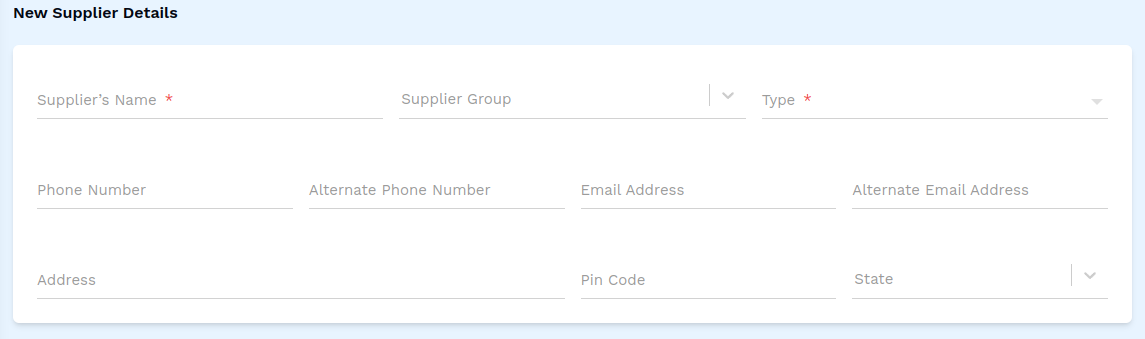
- Supplier's Name: Enter the full name of the supplier (required field).
- Supplier Group: Select the appropriate group for the supplier from the dropdown.
- Type: Select a relevant Type for the supplier from the dropdown (required field).
- Phone Number: Enter the supplier’s primary phone number.
- Alternate Phone Number: Add an alternate phone number, if available.
- Email Address: Enter the supplier’s email address.
- Alternate Email Address: Add an alternate email, if available.
- Address: Enter the supplier’s address.
- Pin Code: Enter the pin code for the supplier's location.
- State: Select the state from the dropdown.
2. Fill in additional Supplier Details

- Billing Name: Enter the name for billing purposes.
- Billing Address: Enter the billing address.
- State: Select the state for billing purposes.
- Use Billing Name in Tally Export?: Check this box if you want the billing name to appear in Tally exports.
3. Fill in Tax Details
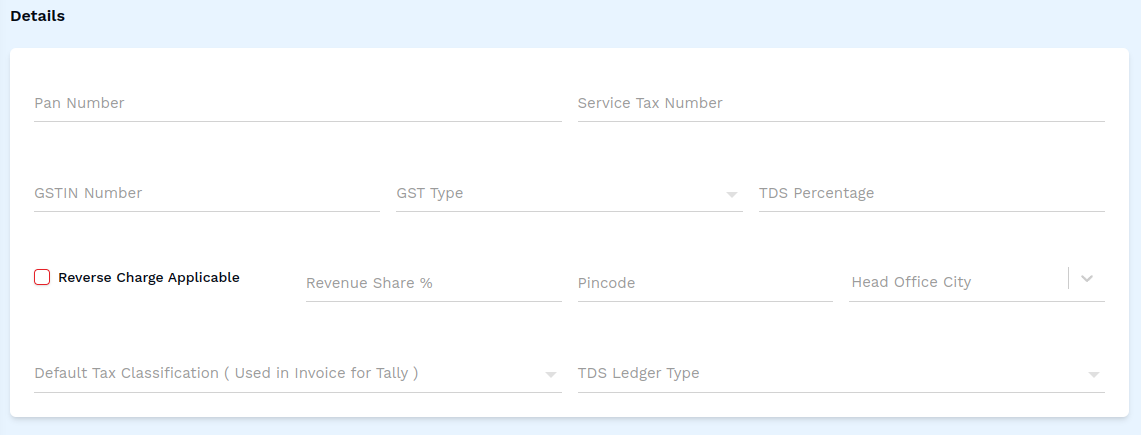
- Pan Number: Enter the supplier’s PAN number.
- Service Tax Number: Enter the service tax number.
- GSTIN Number: Enter the GSTIN number.
- GST Type: Select the GST type from the dropdown.
- TDS Percentage: Enter the TDS percentage.
- Reverse Charge Applicable: Check this box if reverse charge applies.
- Revenue Share %: Enter the percentage of revenue share.
- Pincode: Enter a pincode.
- Head Office City: Select the city in which the supplier's head office is located, from the dropdown.
- Default Tax Classification (Used in Invoice for Tally): Select the tax classification for Tally invoices.
- TDS Ledger Type: Select the type of TDS Ledger.
4. Applicable Taxes and Allowances
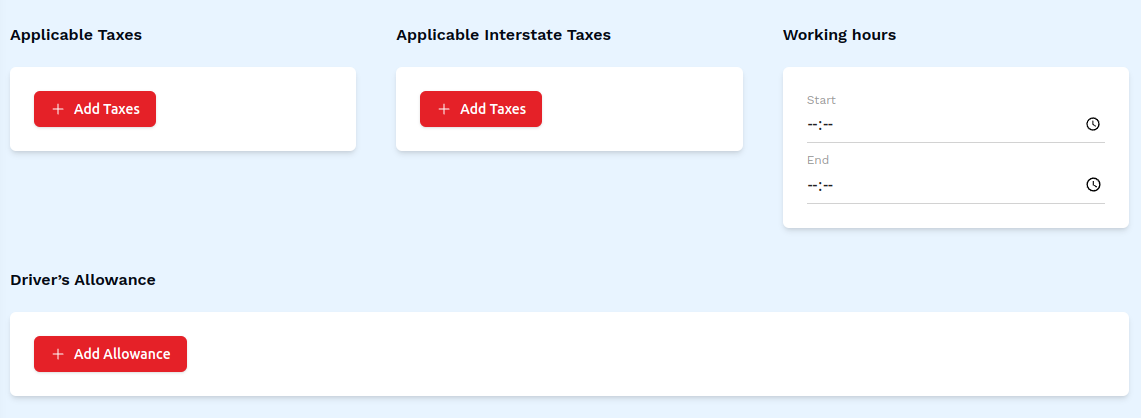
- Applicable Taxes: Click Add Taxes to select taxes from the dropdown.
- Applicable Interstate Taxes: Click Add Taxes to select interstate taxes from the dropdown.
- Working Hours: Select a Start and End time by clicking on their respective clock icons.
- Driver's Allowance: Click Add Driver Allowance to define allowances for drivers.
5. Limits
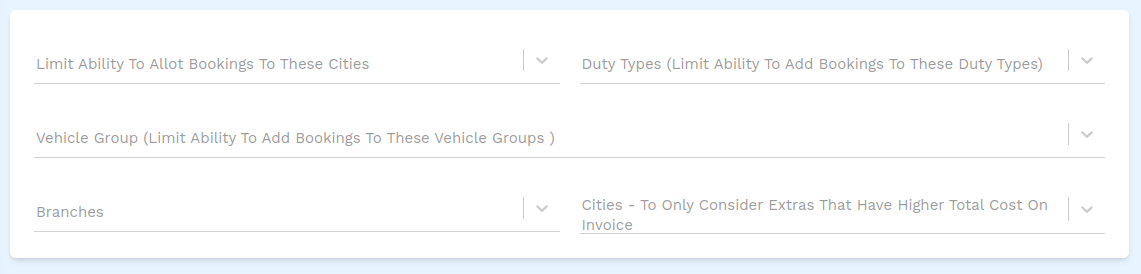
- Limit Ability To Allot Bookings To These Cities: Select one or more cities from the dropdown to limit the ability to allot bookings to only these cities.
- Duty Types (Limit Ability To Add Bookings To These Duty Types): Select one or more duties from the dropdown to limit the ability to allot bookings to only these duty types.
- Vehicle Group (Limit Ability To Add Bookings To These Vehicle Groups): Select one or more vehicle groups from the dropdown to limit the ability to allot bookings to only these vehicle groups.
- Branches: Select one or more branches from the dropdown.
- Cities: Select one or more cities to be considered as extras that have a higher total cost on the invoice.
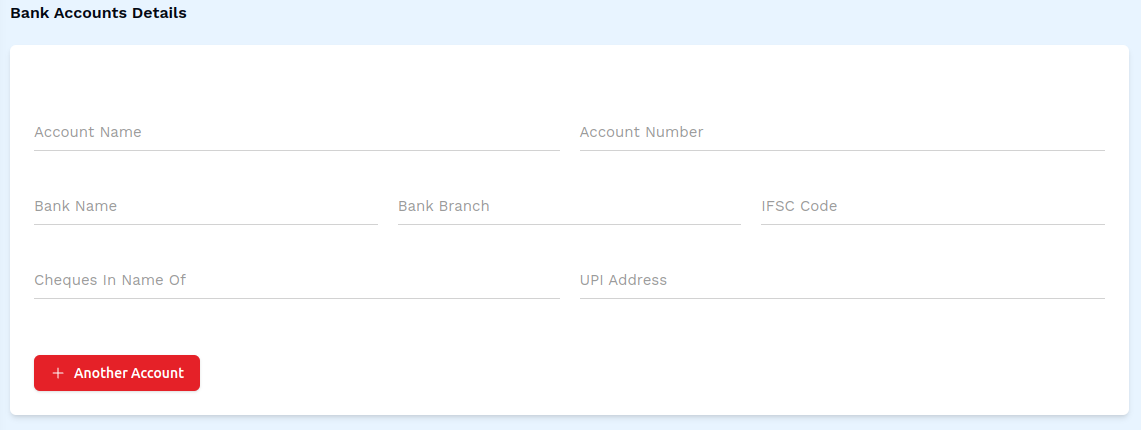
6. Steps to Add Bank Account Details
-
Open the Bank Account Detail form
- Click the + Another Account button
-
Fill in the Bank Account Details
- Account Name: Enter the name of the bank account holder.
- Account Number: Enter the bank account number.
- Bank Name: Enter the name of the bank.
- Bank Branch: Enter the branch name of the bank.
- IFSC Code: Enter the IFSC Code of the bank account.
- Cheques In Name Of: Enter the name of the person that will receive the cheque.
- UPI Address: Enter the UPI Address of the bank account.
7. Files
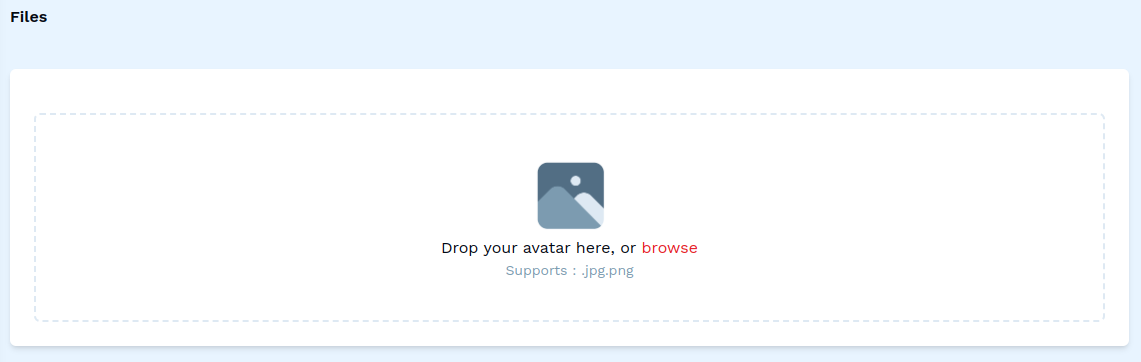
- Add File: This button will open up a box allowing you to browse and select a file from your computer's local storage.
8. Save the Supplier
- After entering all details, click on the Save button to finalize the supplier entry.
This completes the process of adding a new supplier. Make sure all mandatory fields are filled and correct before saving the information.