Add a New Customer
This guide walks you through the steps to add a new customer in the Spothire dashboard. Follow these steps to ensure that all necessary information is correctly entered.
Steps to Add a New Customer
-
Navigate to the Customers Dashboard
- Log in to the Spothire dashboard.
- Go to Masters.
- Under Masters, select Customers
-
Open the Add Customer Form
- Click on the + Add Customer button to open the customer details form.
1. Fill in Customer Details
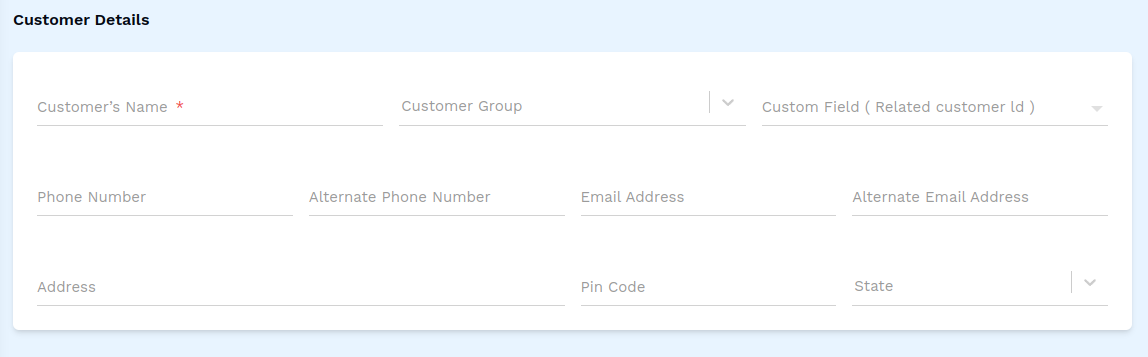
- Customer's Name: Enter the full name of the customer (required field).
- Customer Group: Select the appropriate group for the customer from the dropdown.
- Custom Field (Related Customer ID): Selected a related customer ID/Name from the dropdown.
- Phone Number: Enter the customer’s primary phone number.
- Alternate Phone Number: Add an alternate phone number, if available.
- Email Address: Enter the customer’s email address.
- Alternate Email Address: Add an alternate email, if available.
- Address: Enter the customer’s address.
- Pin Code: Enter the pin code for the customer's location.
- State: Select the state from the dropdown.
2. GSTIN Billing Details (Optional)
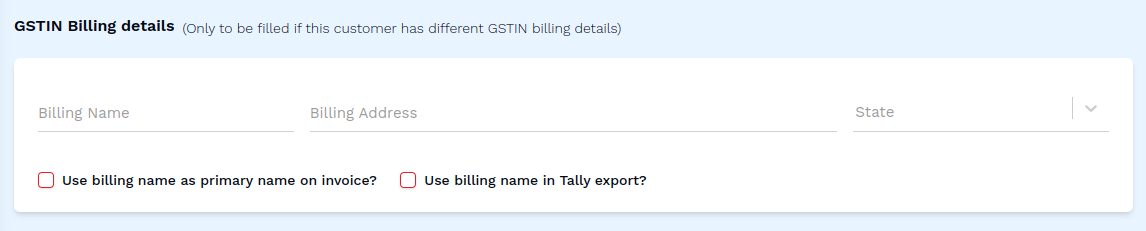
Fill this section only if the customer has different GSTIN billing details.
- Billing Name: Enter the name for billing purposes.
- Billing Address: Enter the billing address.
- State: Select the state for billing purposes.
- Use Billing Name as Primary Name on Invoice?: Check this box if you want the billing name to appear on invoices.
- Use Billing Name in Tally Export?: Check this box if you want the billing name to appear in Tally exports.
3. Fill in Additional Details
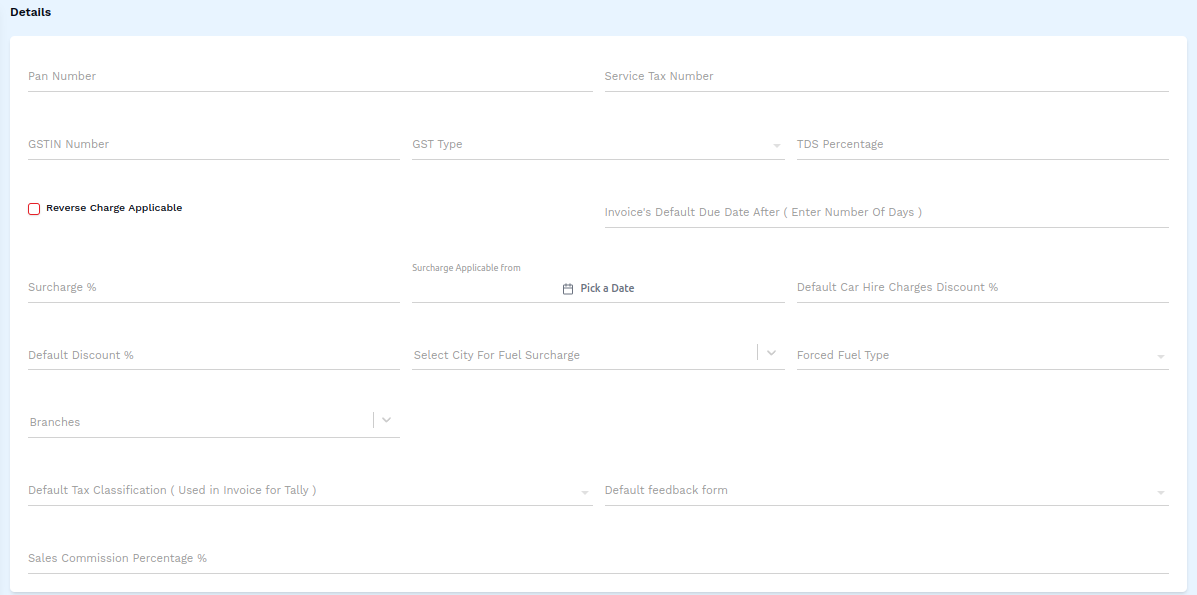
- Pan Number: Enter the customer’s PAN number.
- Service Tax Number: Enter the service tax number.
- GSTIN Number: Enter the GSTIN number.
- GST Type: Select the GST type from the dropdown.
- TDS Percentage: Enter the TDS percentage.
- Reverse Charge Applicable: Check this box if reverse charge applies.
- Invoice’s Default Due Date After (Enter Number of Days): Specify the number of days after which the invoice is due.
- Surcharge Percentage: Enter the surcharge percentage.
- Surcharge Applicable From: Select the date from when the surcharge is applicable.
- Default Car Hire Charges Discount %: Enter the discount percentage on car hire charges.
- Default Discount %: Enter a default discount percentage.
- Select City for Fuel Surcharge: Choose the city for which the fuel surcharge applies.
- Forced Fuel Type: Select the fuel type from the dropdown.
- Branches: Select the applicable branch from the dropdown.
- Default Tax Classification (Used in Invoice for Tally): Choose the tax classification for Tally invoices from the dropdown.
- Default Feedback Form: Select the feedback form type from the dropdown.
- Sales Commission Percentage %: Enter the sales commission percentage.
4. Booking/Duties Settings
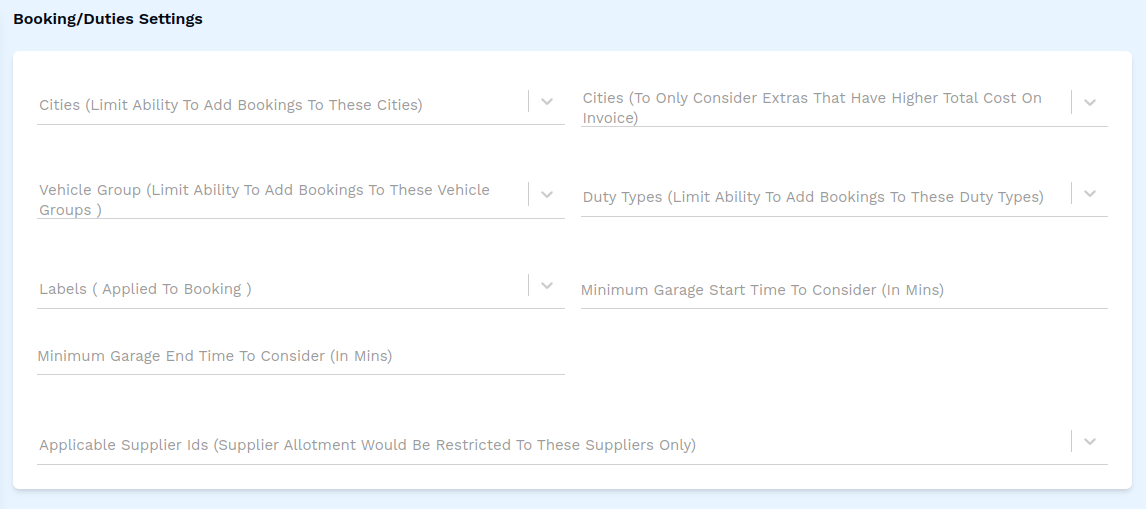
Use this section to set specific limitations and preferences for customer bookings and duties.
- Cities: Select cities where bookings for this customer are allowed.
- Vehicle Group: Restrict bookings to specific types of vehicles.
- Labels: Apply relevant labels to bookings.
- Duty Types: Limit the types of duties available for this customer.
- Minimum Garage Start Time: Specify the minimum time (in minutes) for the garage to start.
- Minimum Garage End Time: Specify the minimum time (in minutes) for the garage to close.
- Applicable Supplier IDs: Limit bookings to specific suppliers.
Additional Booking Options
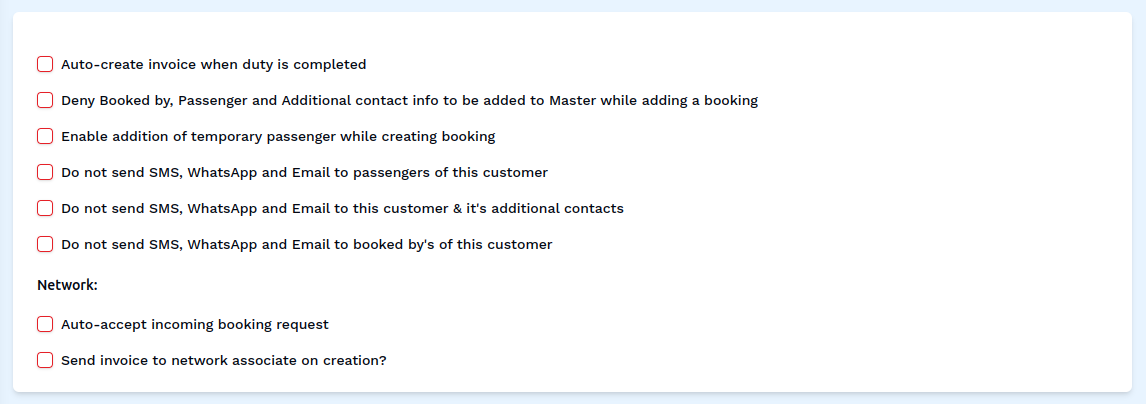
Check the boxes to configure booking-related options for the customer:
- Auto-create invoice when duty is completed: Automatically generate an invoice once a duty ends.
- Deny Booked by, Passenger and Additional contact info to be added to Master while adding a booking: Remove the ability to add booked by, passenger and additional contact info to be added to master, while booking.
- Enable addition of temporary passenger while creating booking: Allow adding temporary passengers.
- Do not send SMS, WhatsApp, and Email to passengers of this customer: Disable notifications for passengers.
- Do not send SMS, WhatsApp, and Email to this customer & its additional contacts: Disable notifications for the customer and their contacts.
- Do not send SMS, WhatsApp, and Email to booked bys of this customer: Disable notifications for users who booked on behalf of the customer.
- Auto-accept incoming booking request: Automatically accept new booking requests for this customer.
- Send invoice to network associate on creation?: Send the invoice to associated network members when created.
5. Taxes and Allowances
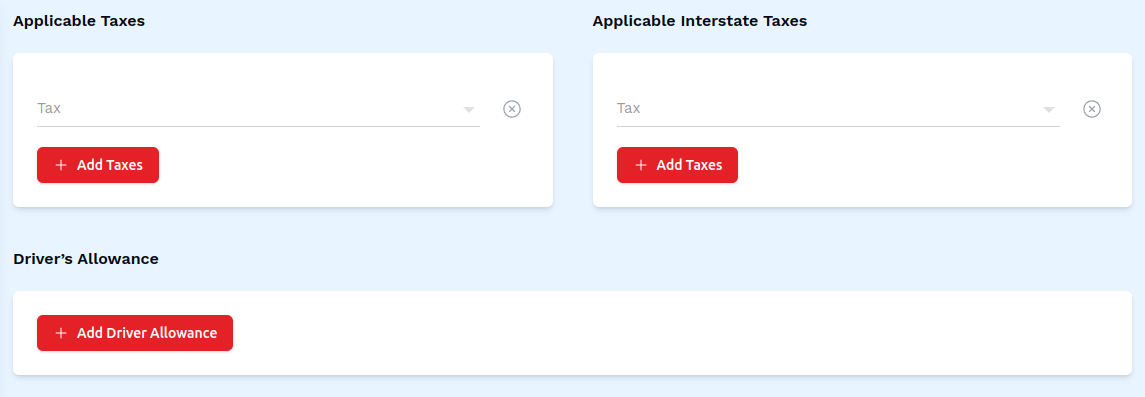
- Applicable Taxes: Click + Add Taxes to select taxes from the dropdown.
- Applicable Interstate Taxes: Click + Add Taxes to select interstate taxes from the dropdown.
- Driver's Allowance: Click + Add Driver Allowance to define allowances for drivers.
6. Steps to Add Files
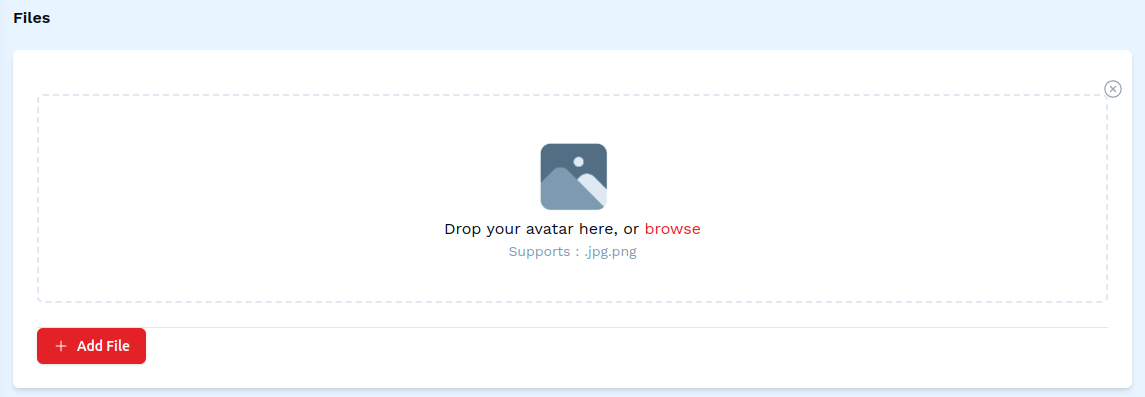
-
Click the + Add File Button
-
Select a File
- Click on the box that says 'Drop your avatar here, or browse'. This will open up a box allowing you to browse and select a supported file from your computer's local storage.
7. Invoice Terms & Conditions
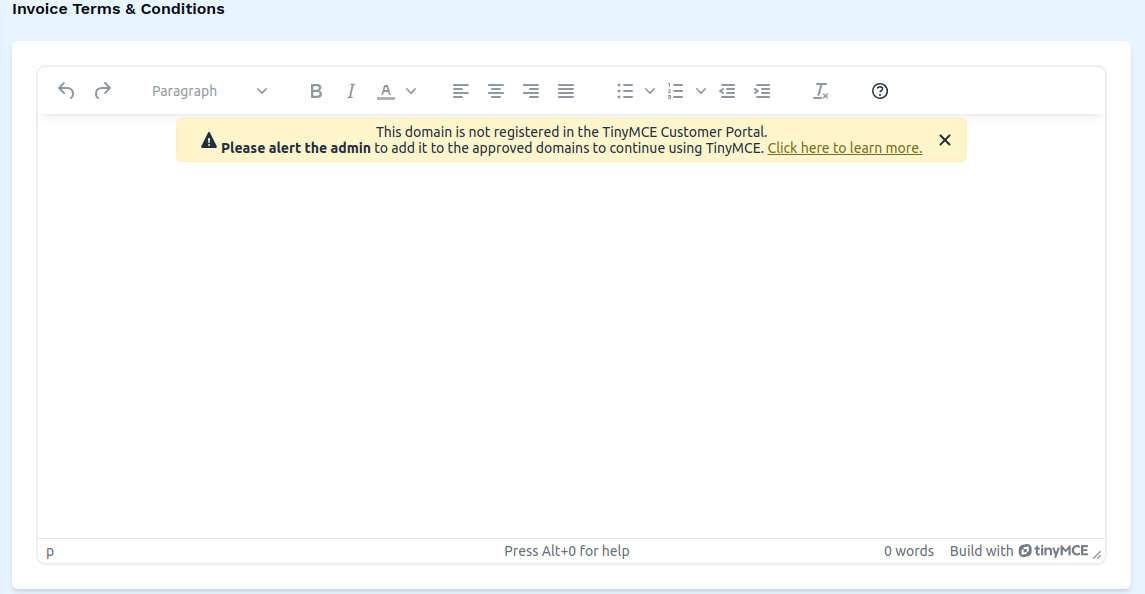
- Use the text editor to add custom terms and conditions that will appear on invoices for this customer.
8. Additional Details
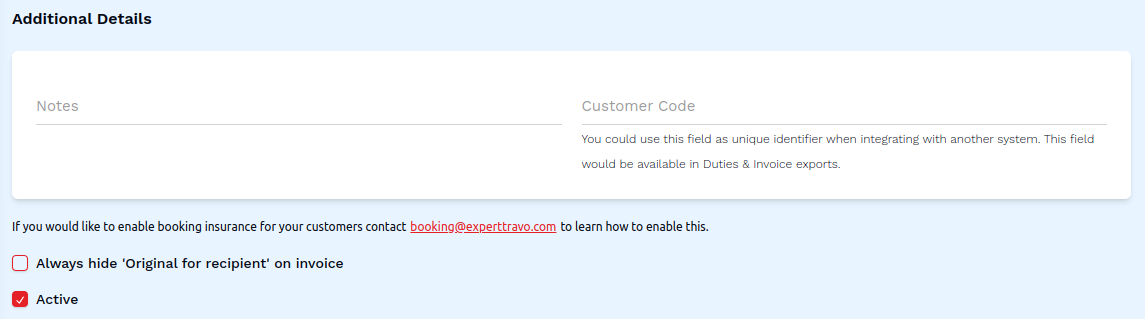
- Notes: Enter any additional notes about the customer.
- Customer Code: Add a unique identifier code for this customer, which can be used for integration with other systems.
Additional Options
- Always hide 'Original for recipient' on invoice: Check this box if you want the original recipient label hidden on invoices.
- Active: Check this box to mark the customer as active.
9. Save the Customer
- After entering all details, click on the Save button to finalize the customer entry.
This completes the process of adding a new customer. Make sure all mandatory fields are filled and correct before saving the information.