Add a New Billing Item
This guide walks you through the steps to add a new billing item in the Spothire dashboard. Follow these steps to ensure that all necessary information is correctly entered.
Steps to Add a New Billing Item
-
Navigate to the Billing Items Dashboard
- Log in to the Spothire dashboard.
- Go to Masters.
- Under Masters, select Billing Items
-
Open the Add Billing Item Form
- Click on the + Add Billing Item button to open the form to fill the billing item details.
1. Fill in Billing Items Details
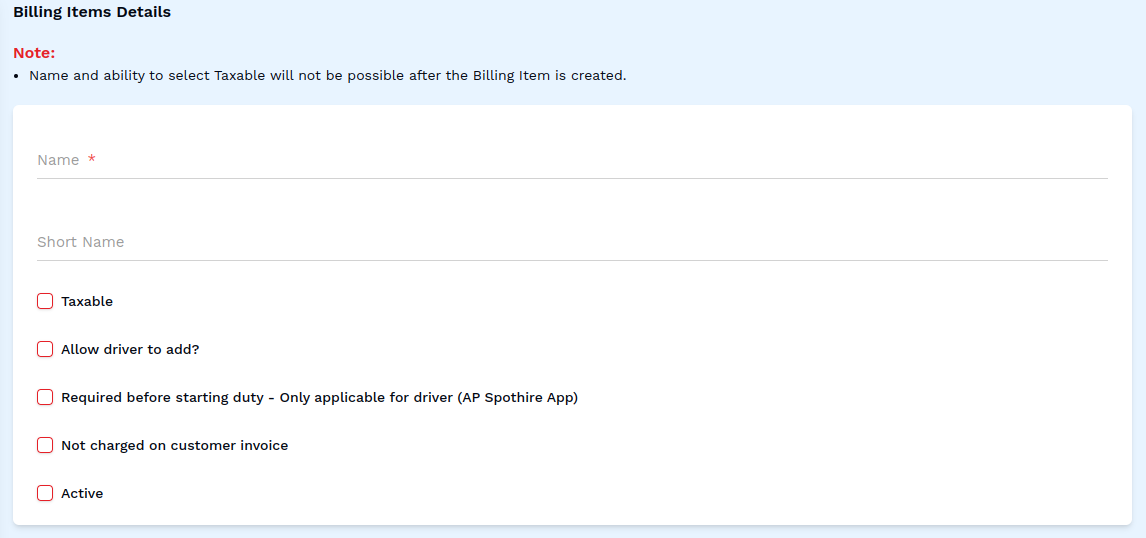
Note: The change of Name and ability to select 'Taxable' will not be possible after the Billing Item is created.
- Name: Enter the name of the billing item (required field).
- Short Name: Enter a short name for the billing item.
- Taxable: Check this box to confirm that the billing item is taxable.
- Allow driver to add?: Check this box to confirm that the driver is allowed to add the billing item in the Spothire App.
- Required before starting duty - Only applicable for driver (Spothire App): Check this box to confirm that the billing item is required for the driver before they start the duty.
- Not charged on customer invoice: Check this box to confirm that the billing item is not charged on customer invoice.
- Active: Check this box to confirm that the billing item is active.
2. Save the Billing Item
- After entering all details, click on the Save button to finalize the billing item entry.
This completes the process of adding a new billing item. Make sure all mandatory fields are filled and correct before saving the information.