Add a New Bank Account
This guide walks you through the steps to add a new bank account in the Spothire dashboard. Follow these steps to ensure that all necessary information is correctly entered.
Steps to Add a New Bank Account
-
Navigate to the Bank Accounts Dashboard
- Log in to the Spothire dashboard.
- Go to Masters.
- Under Masters, select Bank Accounts
-
Open the Add Bank Account Form
- Click on the + Add Bank Account button to open the form to fill the bank account details.
1. Fill in New Bank Account
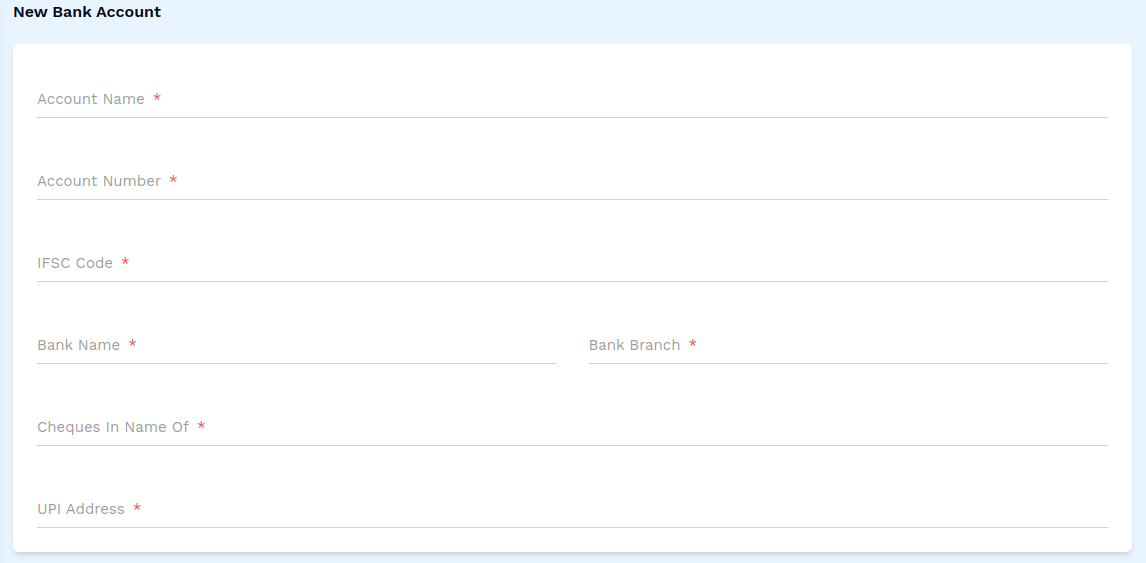
- Account Name: Enter the name of the account holder (required field).
- Account Number: Enter the bank account number (required field).
- IFSC Code: Enter the IFSC Code of the bank account (required field).
- Bank Name: Enter the name of the bank (required field).
- Bank Branch: Enter the name of the bank's branch (required field).
- Cheques In Name Of: Enter the name of the person that will receive the cheque (required field).
- UPI Address: Enter the UPI address (required field).
2. Save the Bank Account
- After entering all details, click on the Save button to finalize the bank account entry.
This completes the process of adding a new bank account. Make sure all mandatory fields are filled and correct before saving the information.