Add a New Company
This guide walks you through the steps to add a new company in the Spothire dashboard. Follow these steps to ensure that all necessary information is correctly entered.
Steps to Add a New Company
-
Navigate to the My Companies Dashboard
- Log in to the Spothire dashboard.
- Go to Masters.
- Under Masters, select My Companies
-
Open the Add Company Form
- Click on the + Add Company button to open the form to fill the company details.
1. Steps to Add Company Details, Logo and Signature
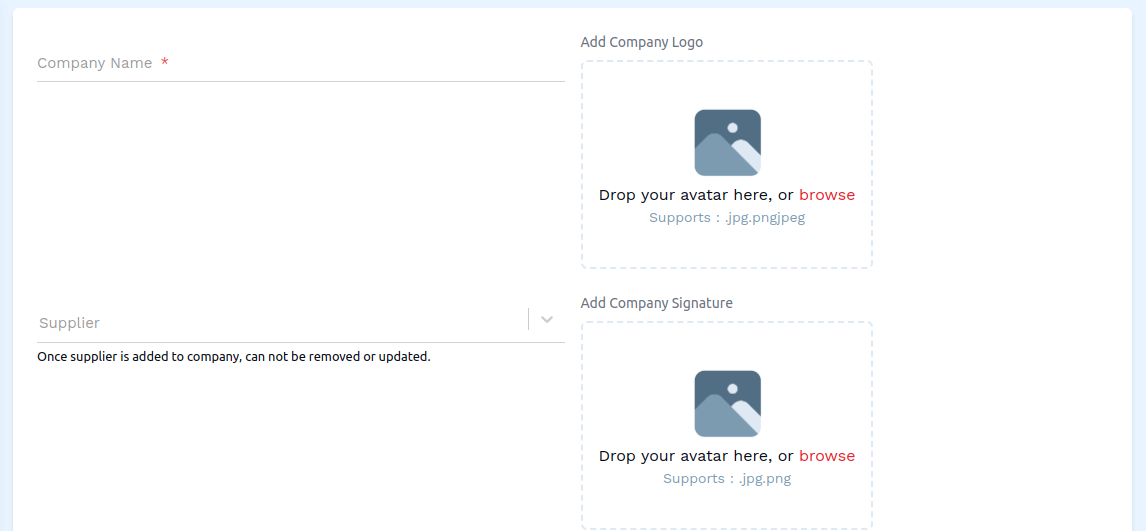
Note: Once supplier is added to company, can not be removed or updated.
-
Fill in Company Details
- Company Name: Enter the name of the company (required field).
- Supplier: Select a supplier for this company from the dropdown.
-
Add Company Logo and Signature
- Add Company Logo: Click on 'Drop your avatar here, or browse' to open the file explorer and select a logo from the local storage on your computer.
- Add Company Signature: Click on 'Drop your avatar here, or browse' to open the file explorer and select a signature from the local storage on your computer.
2. Fill in additional Company Details
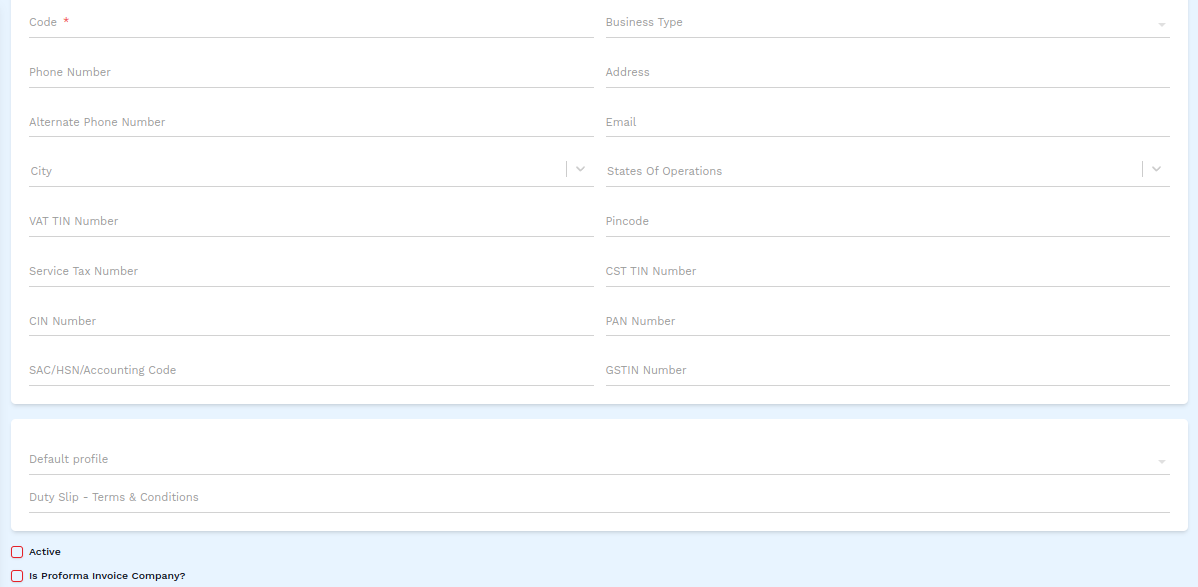
- Code: Enter a company code (required field).
- Business Type: Select the type of business from the dropdown.
- Phone Number: Enter the company phone number.
- Address: Enter the full address of the company.
- Alternate Phone Number: Enter an alternate phone number for the company.
- Email: Enter a company email id.
- City: Select a city from the dropdown.
- States of Operations: Select one or more states in which the company operates, from the dropdown.
- VAT TIN Number: Enter a VAT TIN number.
- Pincode: Enter the pincode.
- Service Tax Number: Enter the service tax number.
- CST TIN Number: Enter the CST TIN number.
- CIN Number: Enter the CIN number.
- PAN Number: Enter the PAN number.
- SAC/HSN/Accounting Code: Enter the SAC/HSN/Accounting code.
- GSTIN Number: Enter the GSTIN number.
- Default Profile: Select a default profile from the dropdown.
- Duty Slip - Terms & Conditions: Enter the terms & conditions for the duty slip, if any.
- Active: Check the box to confirm that this company is active.
- Is Proforma Invoice Company?: Check the box to confirm that this is a proforma invoice company.
3. Save the Company
- After entering all details, click on the Save button to finalize the company entry.
This completes the process of adding a new company. Make sure all mandatory fields are filled and correct before saving the information.