Add a New Employee
This guide walks you through the steps to add a new employee in the Spothire dashboard. Follow these steps to ensure that all necessary information is correctly entered.
Steps to Add a New Employee
-
Navigate to the Employees Dashboard
- Log in to the Spothire dashboard.
- Go to Masters.
- Under Masters, select Employees
-
Open the Add Employee Form
- Click on the + Add Employee button to open the form to fill the employee details.
1. Steps to Add Employee Details and Photo
-
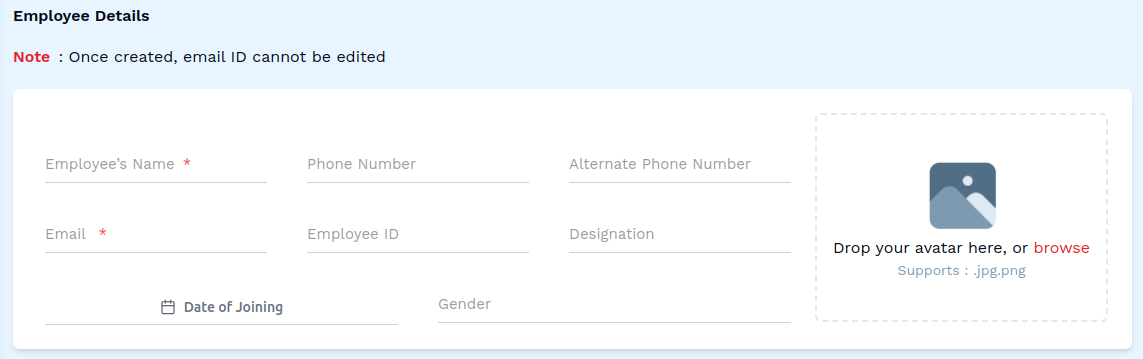
Fill in Employee Details
Note: Once created, email ID cannot be edited
- Employee's Name: Enter the name of the employee (required field).
- Phone Number: Enter the customer’s primary phone number.
- Alternate Phone Number: Add an alternate phone number.
- Email: Enter the email of the employee (required field).
- Designation: Enter the designation of the employee.
- Date of Joining: Select the joining date of the employee.
- Gender: Enter the gender of the employee.
-
Select a Photo for the Employee
- Click on the box that says 'Drop your avatar here, or browse'.
- This will open up a box allowing you to browse and select a photo from your computer's local storage.
2. Fill in Personal Details
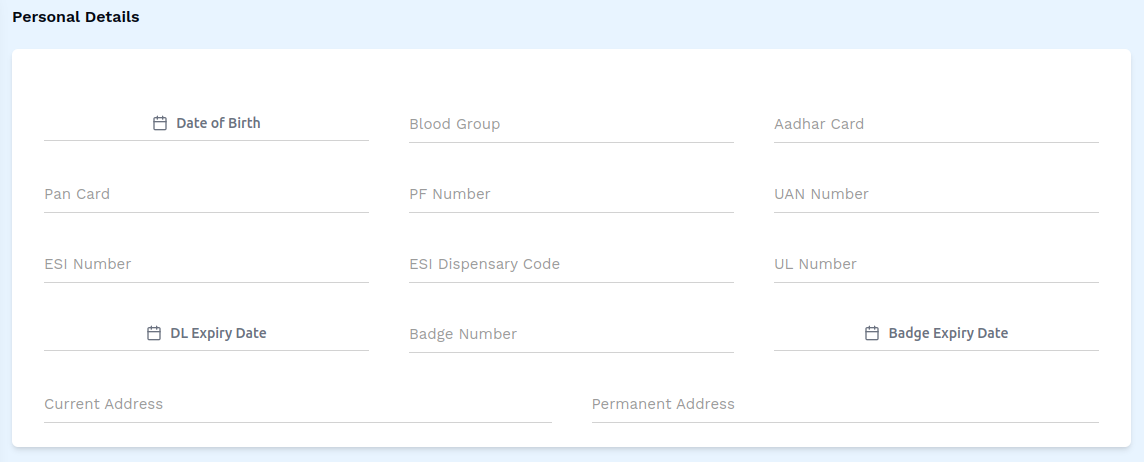
- Date of Birth: Select the employee's birth date.
- Blood Group: Enter the employee's blood group.
- Aadhar Card: Enter the Aadhar number.
- Pan Card: Enter the PAN number.
- PF Number: Enter the PF number.
- UAN Number: Enter the UAN number.
- ESI Number: Enter the ESI number.
- ESI Dispensary Code: Enter the ESI Dispensary code.
- UL Number: Enter the UL Number.
- DL Expiry Date: Select the expiry date of the DL.
- Badge Number: Enter the badge number.
- Badge Expiry Date: Select the expiry date of the badge.
- Current Address: Enter the employee's current address.
- Permanent Address: Enter the employee's permanent address.
3. Fill in Family Details
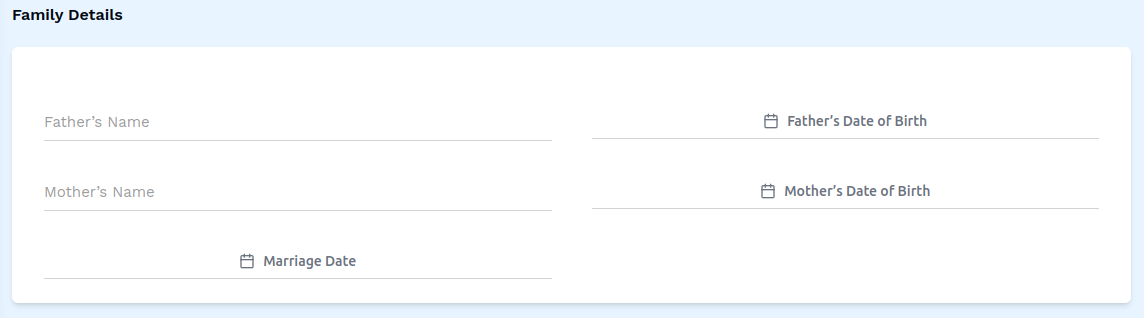
- Father's Name: Enter the name of the employee's father.
- Father's Date of Birth: Select the birth date of the employee's father.
- Mother's Name: Enter the name of the employee's mother.
- Mother's Date of Birth: Select the birth date of the employee's mother.
- Marriage Date: Select the date of marriage of the employee's mother and father.
4. Fill in License and Police Details
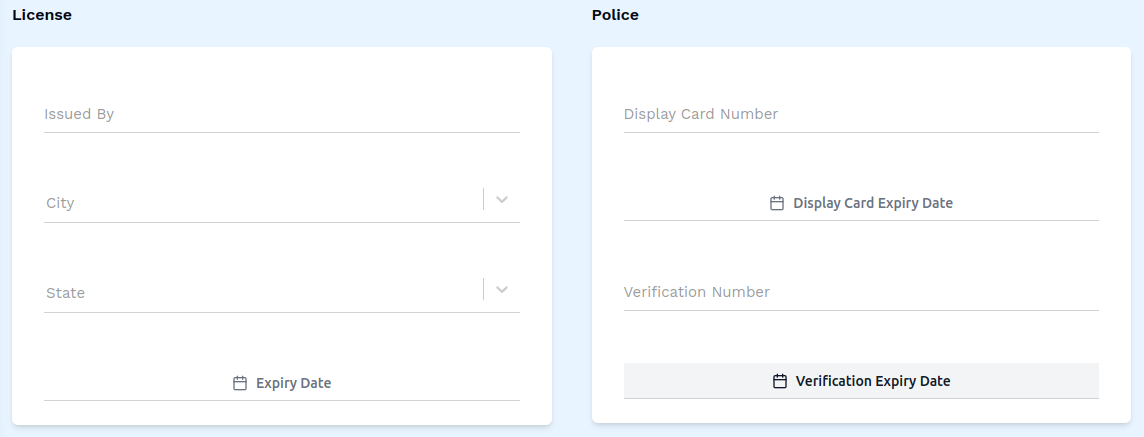
- Issued By - Enter the name of the authority that the license was issued by.
- City - Select the city where the license was created, from the dropdown.
- State - Select the state where the license was created, from the dropdown.
- Expiry Date - Select the expiry date of the license.
- Display Card Number - Enter the display card number.
- Display Card Expiry Date - Select the expiry date of the display card.
- Verification Number - Enter the verification number.
- Verification Expiry Date - Select the expiry date of the verification.
5. Fill in Bank Account Details


- Account Name: Enter the name of the account holder.
- Bank Name: Enter the name of the bank.
- IFSC Code: Enter the IFSC code of the account.
- Branch: Enter the name of the branch of the bank.
- Associate To Sister Company: Select the associate to sister company from the dropdown.
6. Steps to Add Files
-
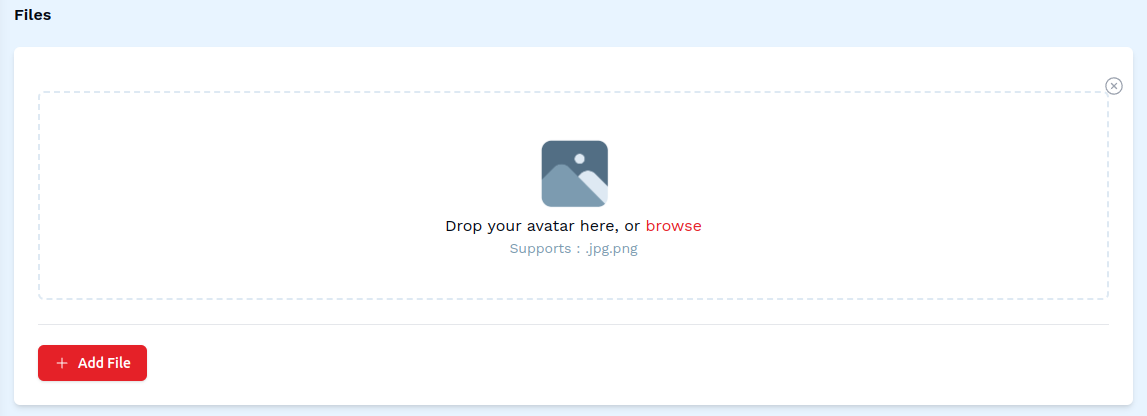
Click the + Add File Button
-
Select a File
- Click on the box that says 'Drop your avatar here, or browse'. This will open up a box allowing you to browse and select a supported file from your computer's local storage.
7. Steps to Add list of IP address to whitelist for this employee/user

Note: If left empty, access will be allowed from everywhere.
-
Click the + Another IP Address Button
-
Fill in IP Address
- IP Address: Enter the IP address that is to be whitelisted.
8. Save the Employee
- After entering all details, click on the Save button to finalize the employee entry.
This completes the process of adding a new employee. Make sure all mandatory fields are filled and correct before saving the information.