Add a New Driver
This guide walks you through the steps to add a new driver in the Spothire dashboard. Follow these steps to ensure that all necessary information is correctly entered.
Steps to Add a New Driver
-
Navigate to the My Drivers Dashboard
- Log in to the Spothire dashboard.
- Go to Masters.
- Under Masters, select My Drivers
-
Open the Add Driver Form
- Click on the + Add Driver button to open the form to fill the driver details.
1. Steps to Add Driver Details and Photo
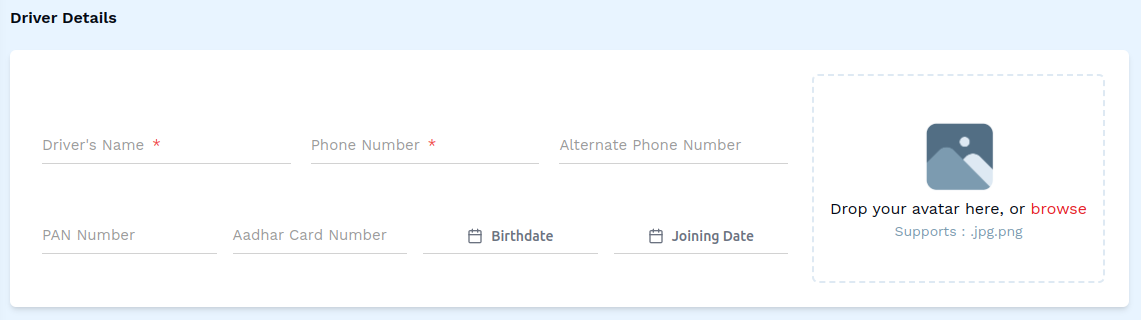
-
Fill in the Driver Details
- Driver's Name: Enter the full name of the Driver (required field).
- Phone Number: Enter the supplier’s primary phone number (required field).
- Alternate Phone Number: Add an alternate phone number, if available.
- PAN Number: Enter the driver's PAN number.
- Aadhar Card Number: Enter the driver's aadhar card number.
- Birthdate: Select the birthdate of the driver.
- Joining Date: Select the joining date of the driver.
-
Select a Photo for the Driver
- Click on the box that says 'Drop your avatar here, or browse'.
- This will open up a box allowing you to browse and select a photo from your computer's local storage.
2. Steps to Add Address

-
Open the Address Form
- Click the + Add Address button
-
Fill in the Address Details
- Type: Select the type of address from the dropdown.
- Address: Enter the full address.
3. Fill in additional Driver Details
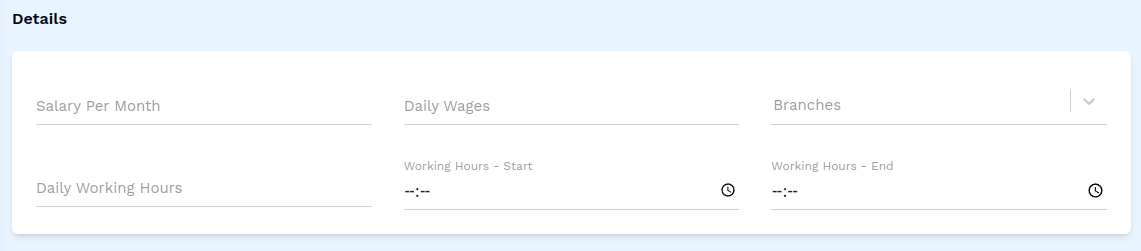
- Salary Per Month: Enter the monthly salary of the driver.
- Daily Wages: Enter the daily wage of the driver.
- Branches: Select a branch from the dropdown.
- Daily Working Hours: Enter the daily working hours of the driver.
- Working Hours - Start: Select a start time by clicking the clock icon.
- Working Hours - End: Select a end time by clicking the clock icon.
4. Fill in Allowances
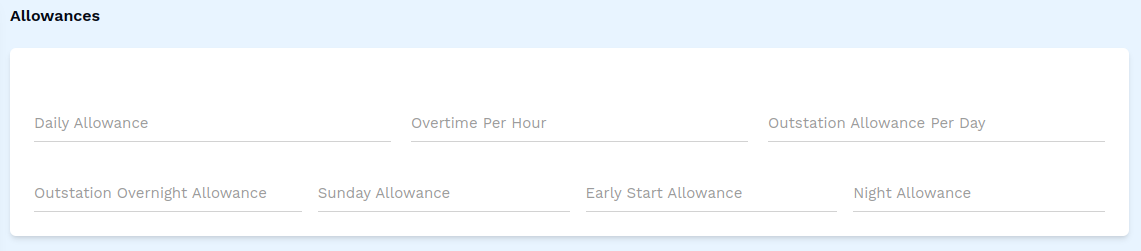
- Daily Allowance: Enter the amount of daily allowance.
- Overtime Per Hour: Enter the amount for overtime per hour.
- Outstation Allowance Per Day: Enter the amount of outstation allowance per day.
- Outstation Overnight Allowance: Enter the amount of outstation overnight allowance.
- Sunday Allowance: Enter the amount of allowance for Sundays.
- Working Hours - End: Select a end time by clicking the clock icon.
- Early Start Allowance: Enter the amount of early start allowance.
- Night Allowance: Enter the amount of allowance for night.
5. Fill in Extra Allowances

- Second Duty: Enter the amount for second duty.
- Third Duty: Enter the amount for third duty.
- Fourth Duty: Enter the amount for fourth duty.
- Fifth Duty: Enter the amount for fifth duty.
6. Steps to Add Deductions

-
Open the Deductions Form
- Click the + Another Deductions button
-
Fill in the Deductions Details
- Name: Enter the name of the deduction.
- Amount: Enter the amount of deduction.
7. Fill in License

- License: Enter the license number.
- Valid upto: Select the date that the license is valid upto.
8. Fill in Police and Badge Details
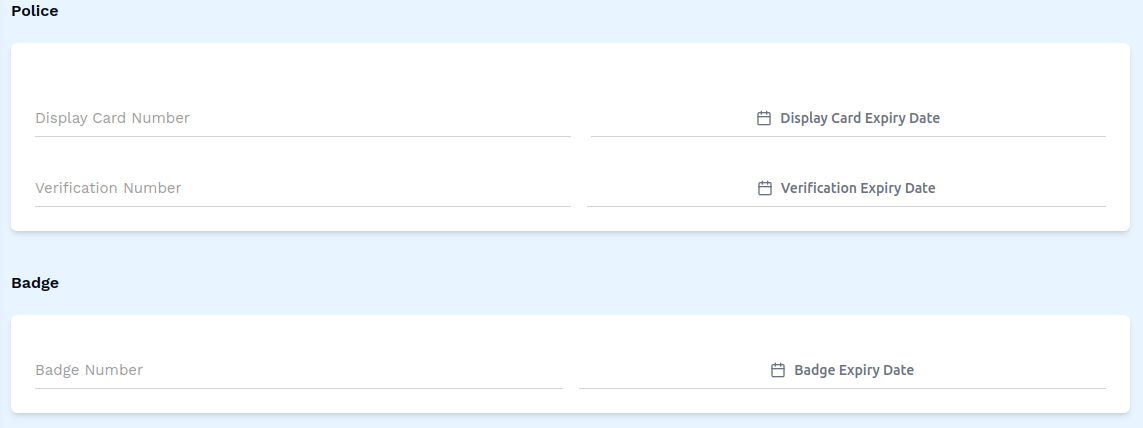
- Display Card Number: Enter the display card number.
- Display Card Expiry Date: Select the expiry date of the display card.
- Verification Number: Enter the verification number.
- Verification Expiry Date: Select the expiry date of the verification.
- Badge Number: Enter the badge number.
- Badge Expiry Date: Select the expiry date of the badge.
9. Files
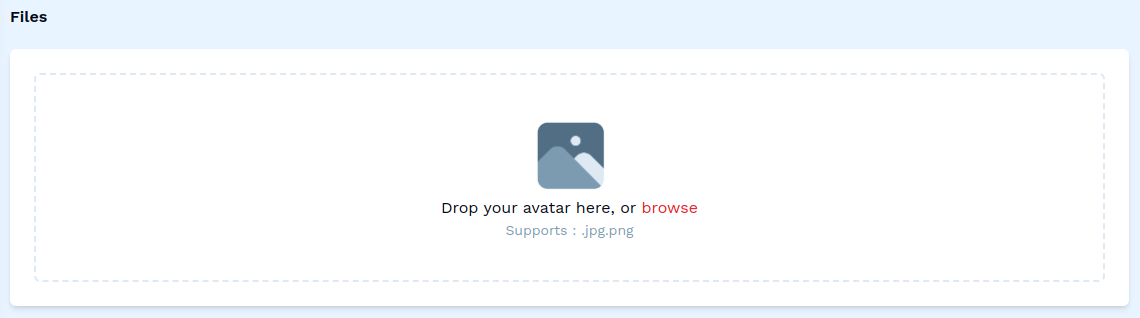
- Click on the box that says 'Drop your avatar here, or browse'. This will open up a box allowing you to browse and select a supported file from your computer's local storage.
10. Fill in additional Details
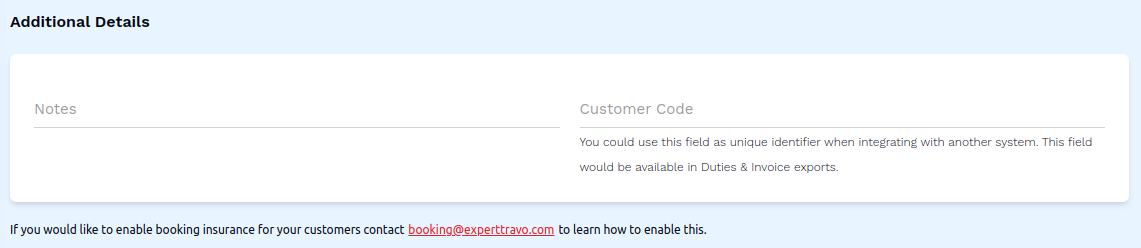
- Notes: Enter any additional notes about the customer.
- Customer Code: Add a unique identifier code for this customer, which can be used for integration with other systems.
Additional Options

- Is contractor?: Check this box if you want to confirm that the driver is a contractor.
- Enable app logout button: Check this box to enable the logout button for the driver.
- Is covid vaccinated: Check this box to confirm that the driver is covid vaccinated.
- Active: Check this box to mark the driver as active.
11. Save the Driver
- After entering all details, click on the Save button to finalize the driver entry.
This completes the process of adding a new driver. Make sure all mandatory fields are filled and correct before saving the information.