Add a New Vehicle
This guide walks you through the steps to add a new vehicle in the Spothire dashboard. Follow these steps to ensure that all necessary information is correctly entered.
Steps to Add a New Vehicle
-
Navigate to the My Vehicles Dashboard
- Log in to the Spothire dashboard.
- Go to Masters.
- Under Masters, select My Vehicles
-
Open the Add Vehicle Form
- Click on the + Add Vehicle button to open the form to fill the vehicle details.
1. Steps to Add Vehicle Details and Photo
-
Fill in the Vehicle Details
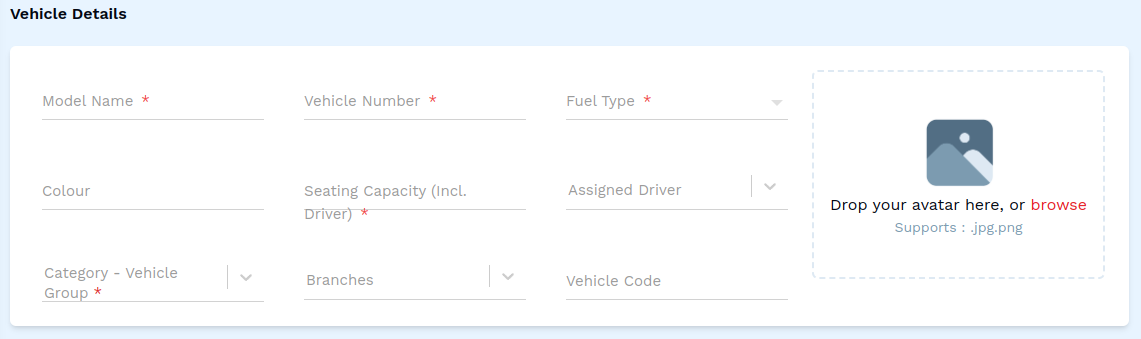
- Model Name: Enter the name of the model of the vehicle (required field).
- Vehicle Number: Enter the vehicle number (required field).
- Fuel Type: Select the fuel type from the dropdown (required field).
- Colour: Enter the colour of the vehicle.
- Seating Capacity (Incl. Driver): Enter the total seating capacity of the vehicle (required field).
- Category - Vehicle Group: Select a vehicle group from the dropdown (required field).
- Branches: Select a branch from the dropdown.
- Vehicle Code: Enter the vehicle code.
-
Select a Photo for the Vehicle
- Click on the box that says 'Drop your avatar here, or browse'.
- This will open up a box allowing you to browse and select a photo from your computer's local storage.
2. Fill in Loan
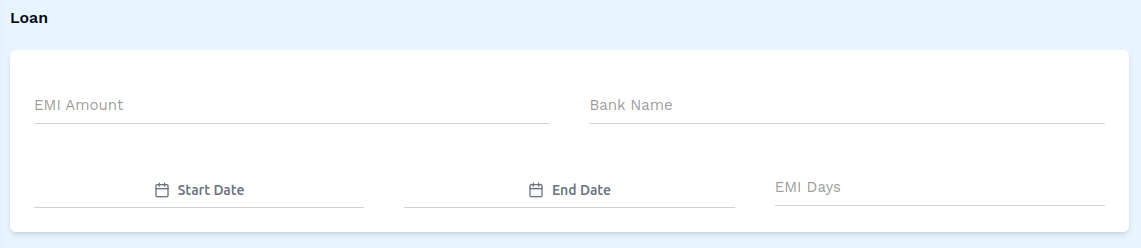
- EMI Amount: Enter the amount of EMI.
- Bank Name: Enter the name of the bank.
- Start Date: Select a start date for the loan.
- End Date: Select an end date for the loan.
- EMI Days: Enter the amount of days for the EMI.
3. Fill in Registration and Parts
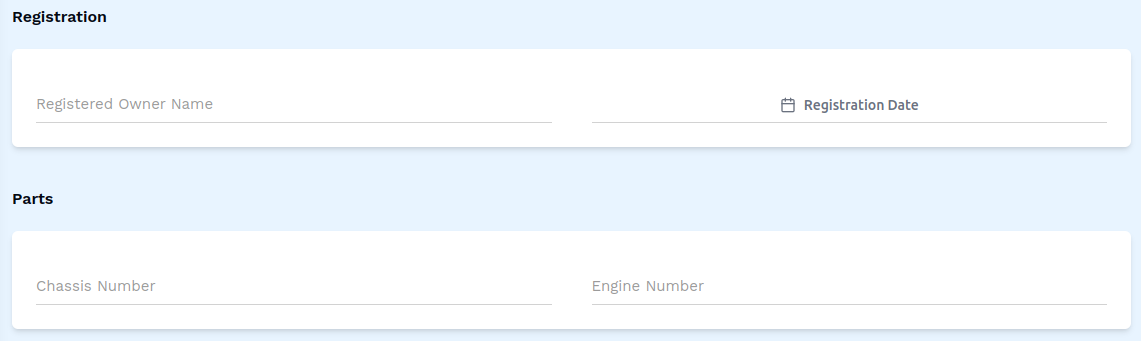
- Registered Owner Name: Enter the name of the vehicle's registered owner.
- Registeration Date: Select the date of registeration of the vehicle.
- Chassis Number: Enter the vehicle's chassis number.
- Engine Number: Enter the vehicle's engine number
4. Fill in Insurance
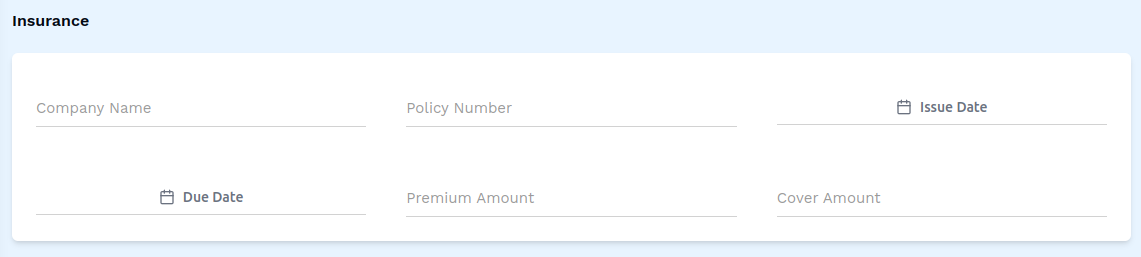
- Company Name: Enter the name of the insurance company.
- Policy Number: Enter the policy number.
- Issue Date: Select the insurance's issue date.
- Due Date: Select the insurance's due date.
- Premium Amount: Enter the amount of premium for the insurance.
- Cover Amount: Enter the amount of cover for the insurance.
5. Fill in RTO

- Address: Enter the address of the RTO.
- Tax Efficiency: Enter the amount of tax efficiency.
- Expiry Date: Select the date of expiry.
6. Fill in Fitness, Authorization and Speed Governor
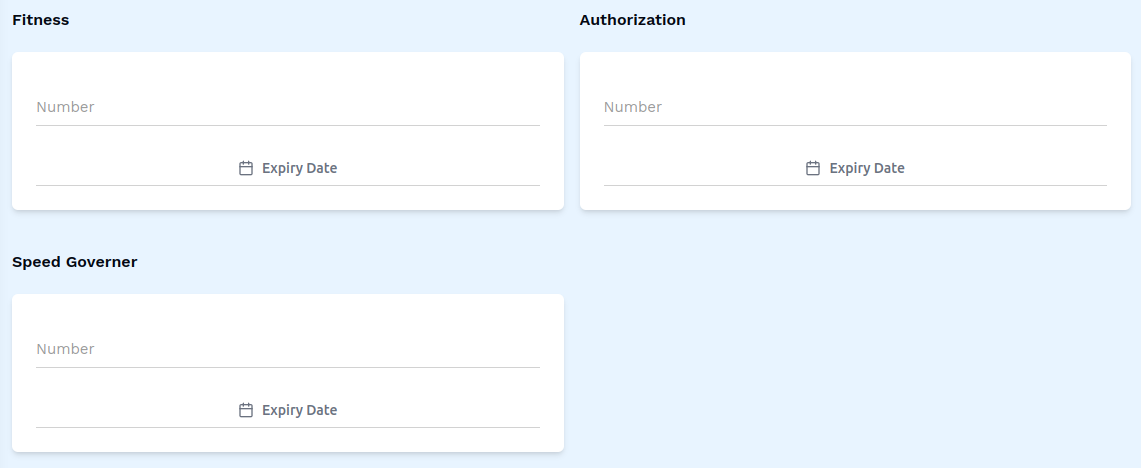
- Number: Enter the Fitness/Authorization/Speed Governor number.
- Expiry Date: Select the expiry date for Fitness/Authorization/Speed Governor.
7. Steps to Add Permits

-
Open the Permits Form
- Click the + Add Permits button
-
Fill in the Permits Details
- Type: Enter the type of the permit.
- Expiry Date: Select the expiry date of the permit.
8. Files

- Click on the box that says 'Drop your avatar here, or browse'. This will open up a box allowing you to browse and select a supported file from your computer's local storage.
Additional Options

- Unavailable for duty: Check this box if you want to confirm that the vehicle is unavailable for duty.
- Active: Check this box to confirm that the vehicle is active.
9. Save the Vehicle
- After entering all details, click on the Save button to finalize the vehicle entry.
This completes the process of adding a new vehicle. Make sure all mandatory fields are filled and correct before saving the information.