Add a New Receipt
This guide walks you through the steps to add a new receipt in the Spothire dashboard. Follow these steps to ensure that all necessary information is correctly entered.
Steps to Add a New Receipt
-
Navigate to the Receipt Dashboard
- Log in to the Spothire dashboard.
- Go to Operation.
- Under Operation, select Receipts
-
Open the Add Receipt Form
- Click on the + New Receipt button to open the form to fill the receipt details.
1. Fill in Customer Details
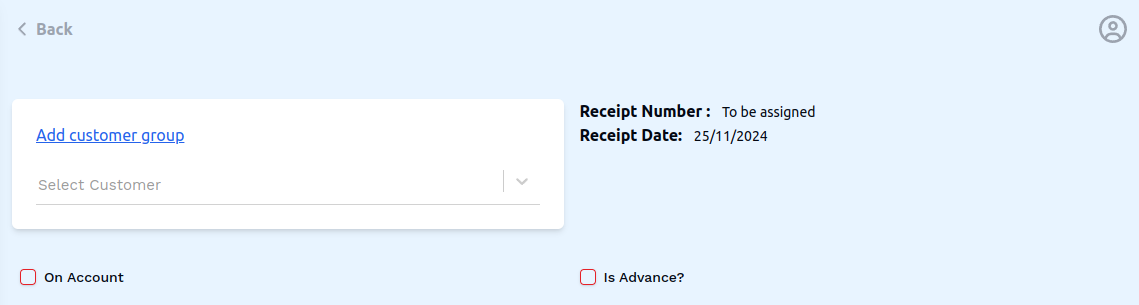
- Click on Add customer group to be able to add a customer group from a dropdown.
- Customer Group: Select a customer group from the dropdown.
- Select Customer: Select a customer from the dropdown.
You can only check any one of the checkboxes. If one checkbox is checked, the other checkbox will be disabled
- On Account: Check this box if the payment is on account.
- Is Advance?: Check this box if the payment has been made in advance.
2. Fill in Invoices
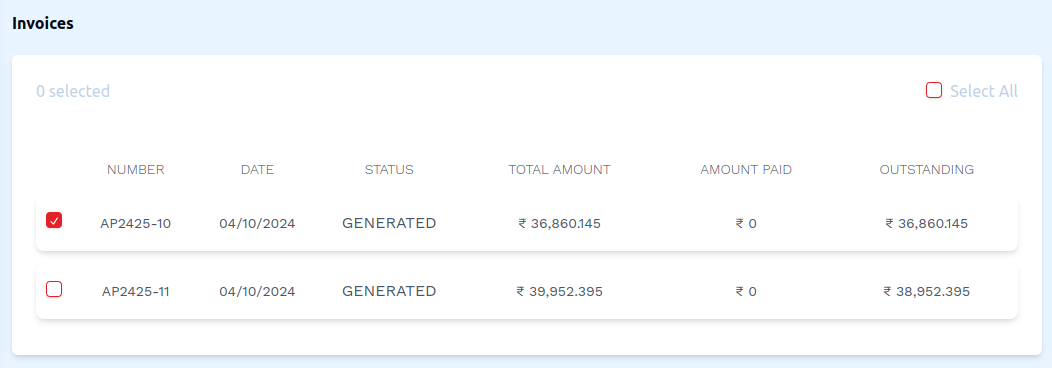
This section is not visible if the Is Advance? checkbox has been checked.
*The invoices shown in this section are related to the customer selected on the top of the page
- There is a checkbox on each invoice, which can be checked to select an invoice.
- There is also a Select All checkbox in the top right corner of the invoice section. This checkbox can be checked if you wish to select all invoices.
3. Fill in Additional Details
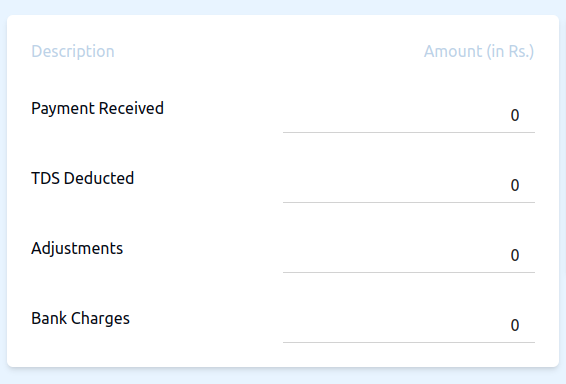
- Payment Received: Enter the amount of payment received in rupees.
- TDS Deducted: Enter the amount of TDS deducted in rupees.
- Adjustments: Enter the amount adjustments rupees.
- Bank Charges: Enter the amount bank charges in rupees.
4. Steps to add Payment Mode Details
- Using Cash
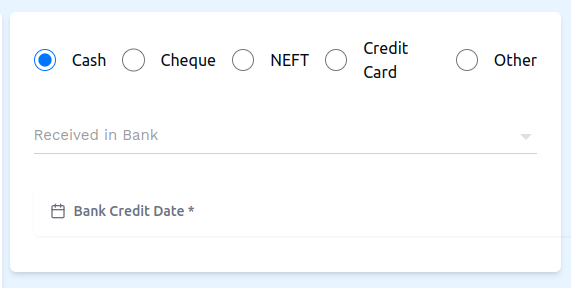
- Click on the Cash radio button.
- Received in Bank: Enter the amount of money received in the bank in rupees.
- Bank Credit Date: Select the date of bank credit.
- Using Cheque
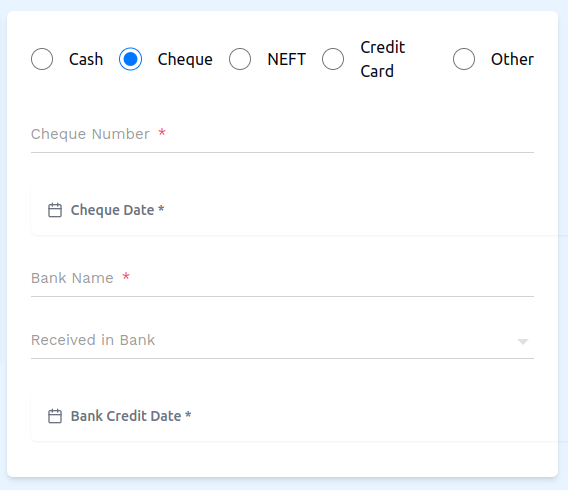
- Click on Cheque radio button.
- Cheque Number: Enter the cheque number (required).
- Cheque Date: Select the date on the cheque (required).
- Bank Name: Enter the name of the bank that the cheque is from (required).
- Received in Bank: Enter the amount of money received in the bank in rupees.
- Bank Credit Date: Select the date of bank credit.
- Using NEFT
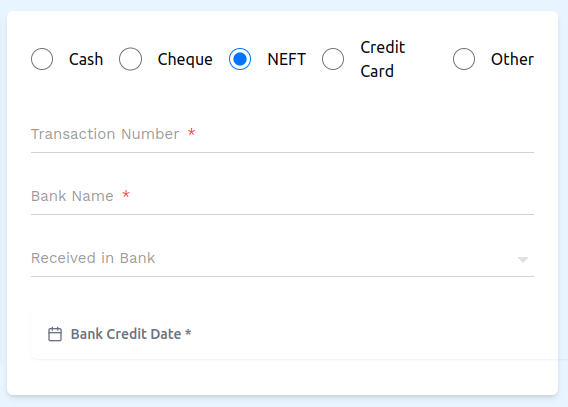
- Click on NEFT radio button.
- Transaction Number: Enter the transaction number (required).
- Bank Name: Enter the name of the bank that the NEFT is from (required).
- Received in Bank: Enter the amount of money received in the bank in rupees.
- Bank Credit Date: Select the date of bank credit.
- Using Credit Card
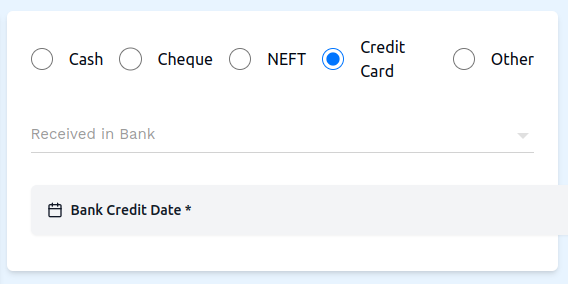
- Click on the Credit Card radio button.
- Received in Bank: Enter the amount of money received in the bank in rupees.
- Bank Credit Date: Select the date of bank credit.
- Using Other
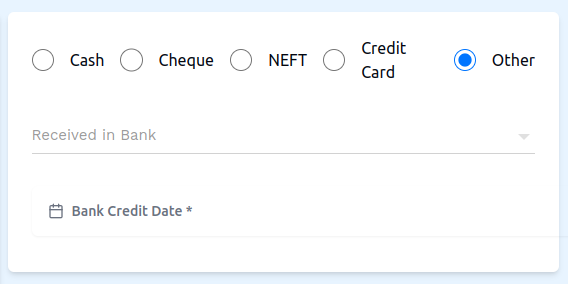
- Click on the Other radio button.
- Received in Bank: Enter the amount of money received in the bank in rupees.
- Bank Credit Date: Select the date of bank credit.
5. Attach Invoice Attachments
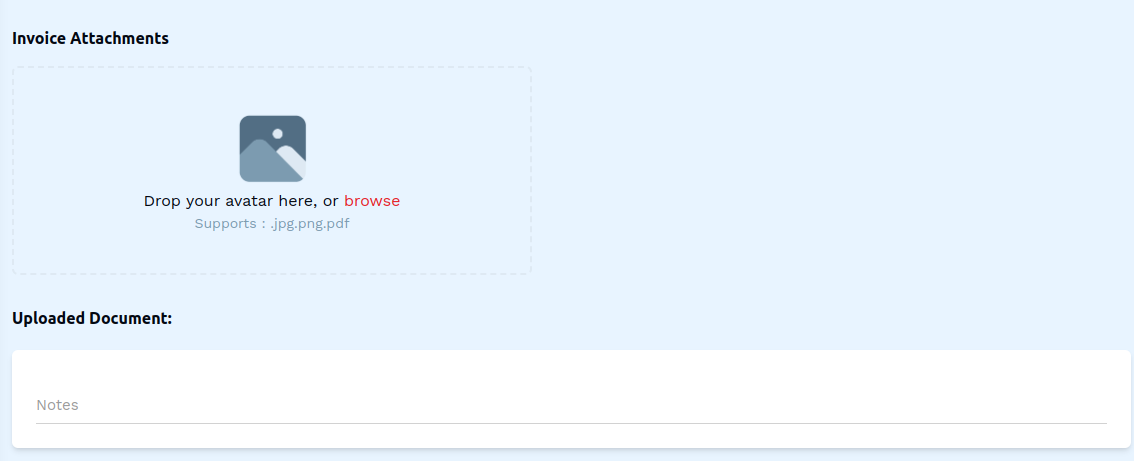
- Click on 'Drop your avatar here, or browse' to open the file explorer and select a file from the local storage on your computer.
- The file you selected will be uploaded and shown under Uploaded Document:.
- Notes: Add some notes, if you want to.
6. Save the Receipt
- After entering all details, click on the Save button to finalize the receipt entry.
This completes the process of adding a new receipt. Make sure all mandatory fields are filled and correct before saving the information.