Add a New Invoice
This guide walks you through the steps to add a new invoice in the Spothire dashboard. Follow these steps to ensure that all necessary information is correctly entered.
Steps to Add a New Invoice
-
Navigate to the Billing Dashboard
- Log in to the Spothire dashboard.
- Go to Masters.
- Under Masters, select Billing
-
Open the Add Invoice Form
- Click on the + New Invoice button to open the form to fill the invoice details.
1. Select a Customer
- Click on the Select Customer button.

- This opens up a modal where all the customers are listed.
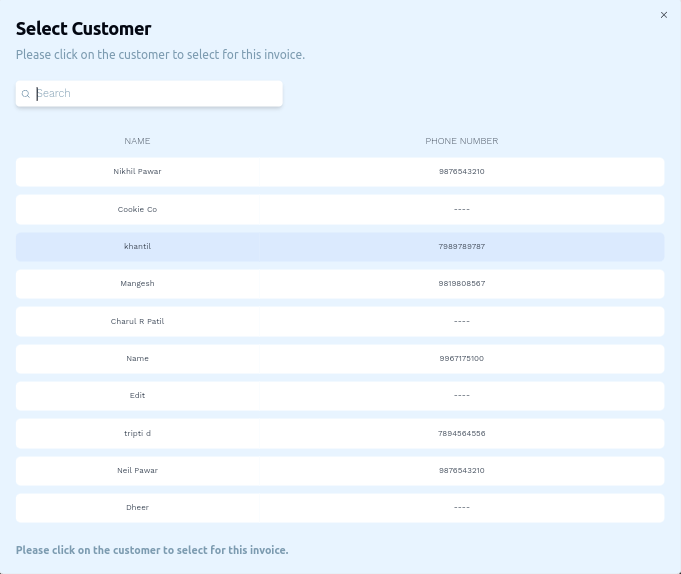
- Click on any customer listing to select that customer.
- Selecting a customer will immediately close the modal and that customer will be selected.
- To select a different customer, click on the Select Customer button again and choose a different customer.
2. Fill in Invoice Number
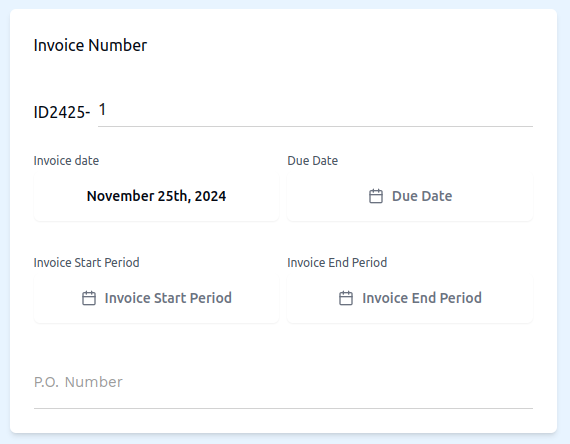
- ID2425: Enter the invoice ID.
- Invoice date: This date is automatically selected as the current date by default, however you can change it if you wish to.
- Due date: Select a due date for the invoice.
- Invoice Start Period: Select a start date for the invoice.
- Invoice End Period: Select an end date for the invoice.
- P.O Number: Enter a P.O number.
3. Create the Invoice
- Click Add Custom Row to create a Taxable or Non-Taxable row. In this Taxable or Non-Taxable row, you will see three input fields Charges, Rate and Quantity where you can enter a name for the charges on the left, a percentage value for the rate and the numbered quantity on the right.


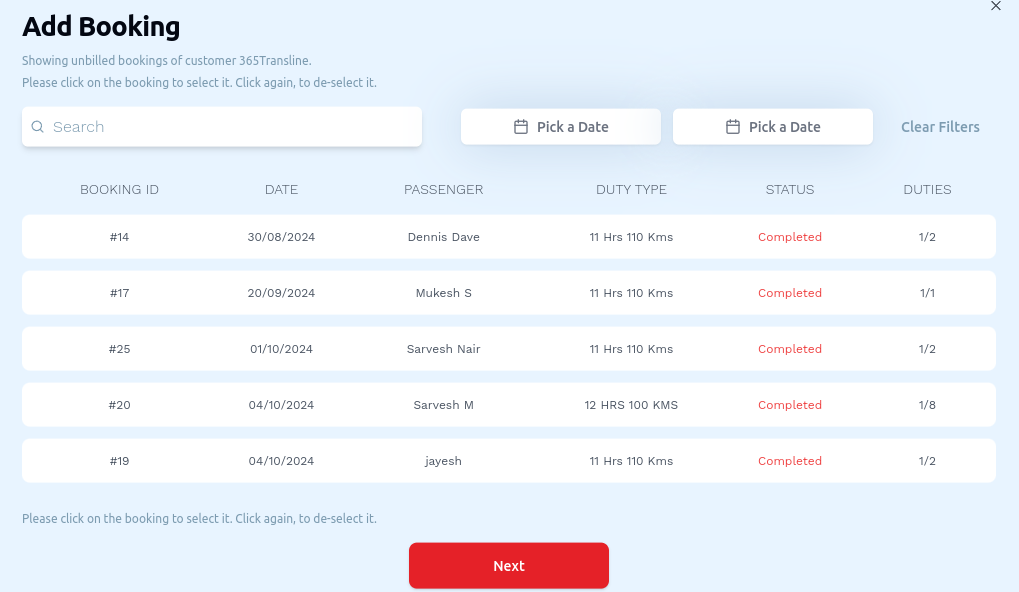
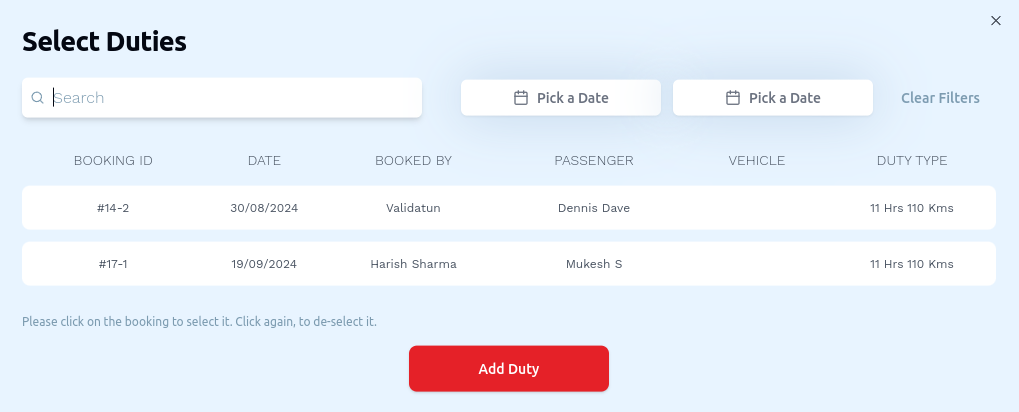
- Click Add Booking to open a modal that allows you to select one or more bookings. After selecting the booking(s), click the Next button. This will open the Select Duties modal, where you can select one or more duties. After selecting the duty(s), click the Add Duty button to finally add the booking and its duty to the invoice.
- Click Add Tax to create a row of tax. This tax row has a dropdown. Upon opening this dropdown, you'll see several options. Selecting an option from this dropdown, for example 'CGST 2.5%', automatically adds '2.5' in the rate column in the tax row. The tax is then calculated on this '2.5%'


- Click Add Discount and select either 'By amount', 'By %', or 'By % on car hire charges'. If 'By amount' is selected, the discount is calculated by using this hardcoded amount, but if 'By %', the discont is calculated percentage wise from the total amount of charges.



- Click Add Surchage to create a surcharge row. In this this surcharge row, you will see two input fields Charges and Rate where you can write the name of the surcharge and enter the surcharge amount, respectively.


4. Select Tax Classification and Attach Invoice Attachments
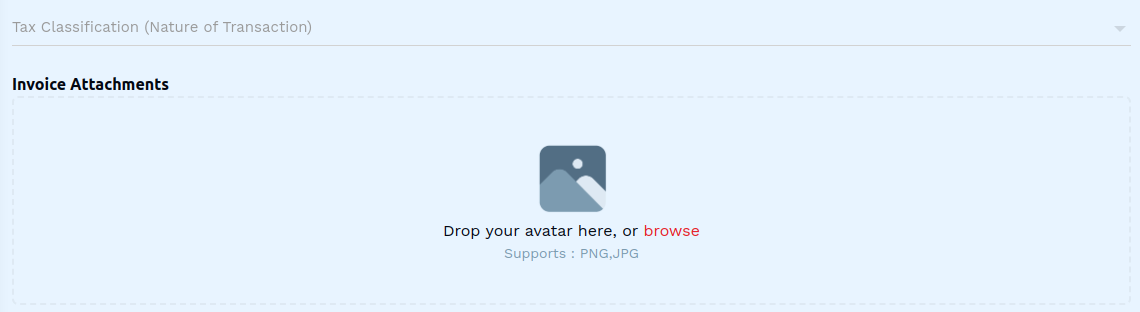
- Tax Classification (Nature of Transaction): Select the nature of transcation, i.e tax classification from the dropdown.
- Invoice Attachments: Click on Drop your avatar here, or browse This will open up a box allowing you to browse and select a file to upload from your computer's local storage.
5. Save the Invoice
- After entering all details, click on the Save button to finalize the invoice entry.
This completes the process of adding a new invoice. Make sure all mandatory fields are filled and correct before saving the information.