Add a New Credit/Debit Note
This guide walks you through the steps to add a new credit/debit note in the Spothire dashboard. Follow these steps to ensure that all necessary information is correctly entered.
Steps to Add a New Credit/Debit Note
-
Navigate to the Credit Debit Notes Dashboard
- Log in to the Spothire dashboard.
- Go to Operation.
- Under Operation, select Credit Debit Notes
-
Open the Add Credit/Debit Note Form
- Click on the + New Credit/Debit Note button to open the form to fill the credit/debit note details.
1. Select Credit/Debit
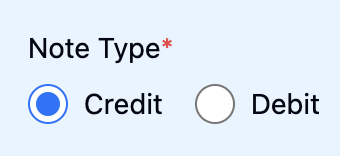
- There are two radio buttons under Note Type named Credit and Debit. If you wish to create only a credit note, select Credit as the Note Type by clicking on the respective button, and vice versa for a debit note.
- However, if you wish to add both credit and debit notes, then leave both of these radio buttons as unselected.
- If you selected Credit as the Note Type, then follow the steps below
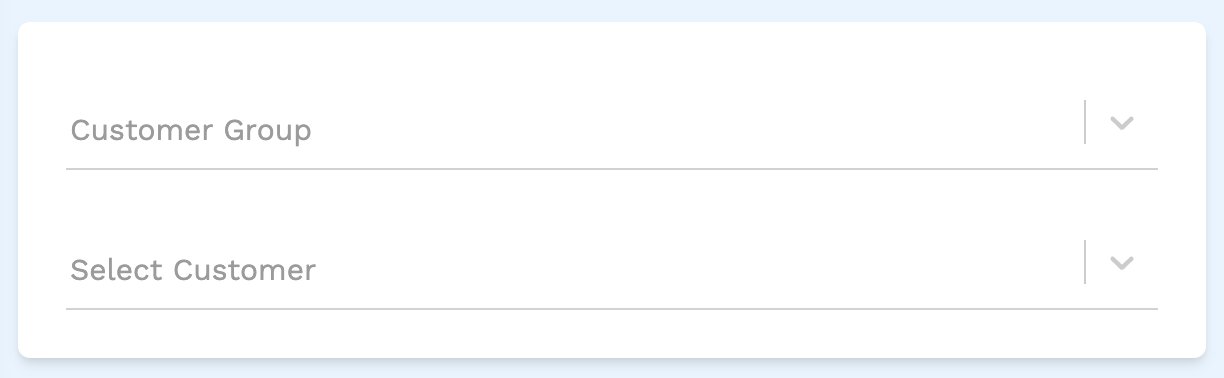
You can select either the Customer Group or Customer or both, but you must select at least one
- Customer Group: Select a customer group from the dropdown.
- Select Customer: Select a customer from the dropdown.
- If you selected Debit as the Note Type, then follow the steps below
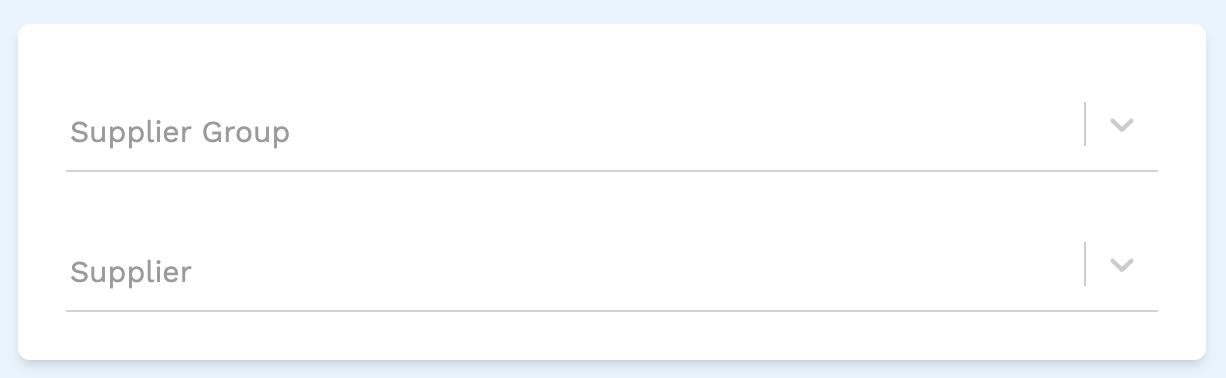
You can select either the Supplier Group or Supplier or both, but you must select at least one
- Supplier Group: Select a supplier group from the dropdown.
- Supplier: Select a supplier from the dropdown.
If you want to create both credit and debit note, then follow the steps in both the points above
2. Select an Invoice/a Purchase Invoice
-
If you selected Credit as the Note Type, you need to add an Invoice. Follow the steps below
For you to be able to select an Invoice you need to make sure that you have selected an option from Customer Group or Customer or both above.
- Select the checkbox on an individual Invoice to select it.
- Once one or more invoices have been selected, you will see an Add Amount button.
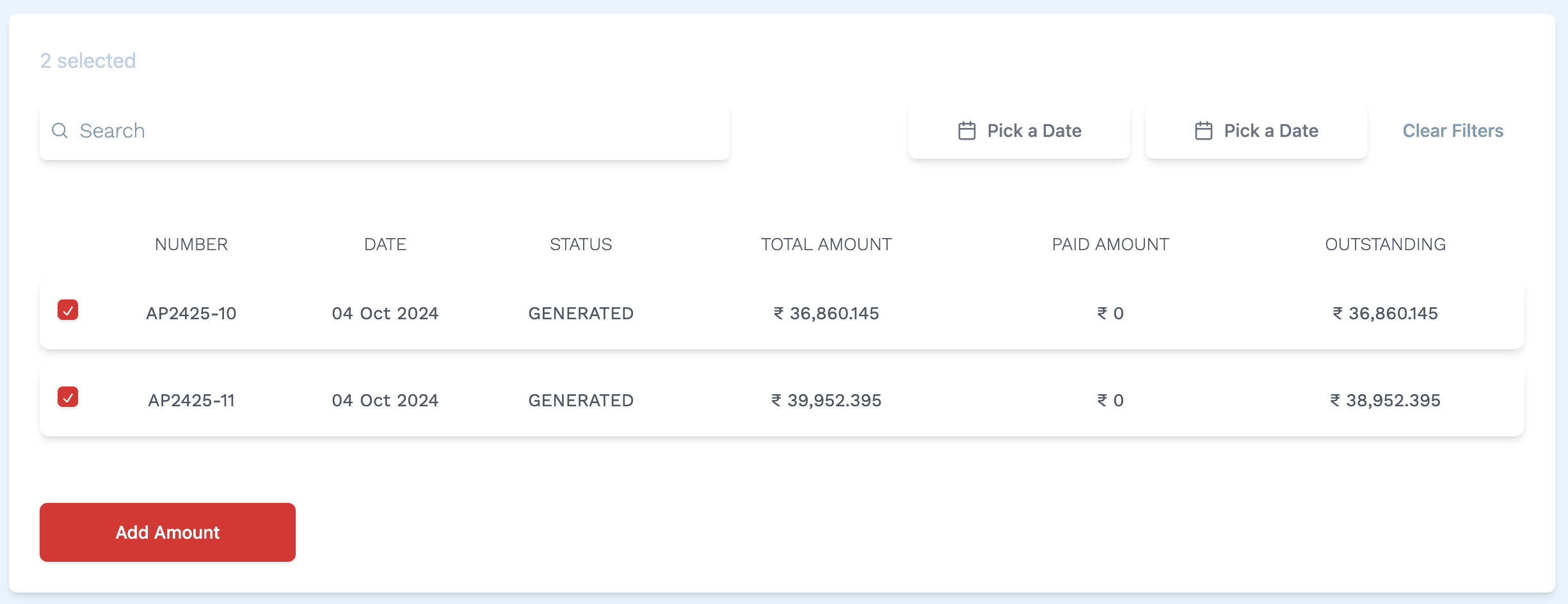
- After clicking the Add Amount button a table appears on the screen.
- We see that under the DUTY IDS column, there is a Select duties button on each row of invoice that we selected in the previous step.
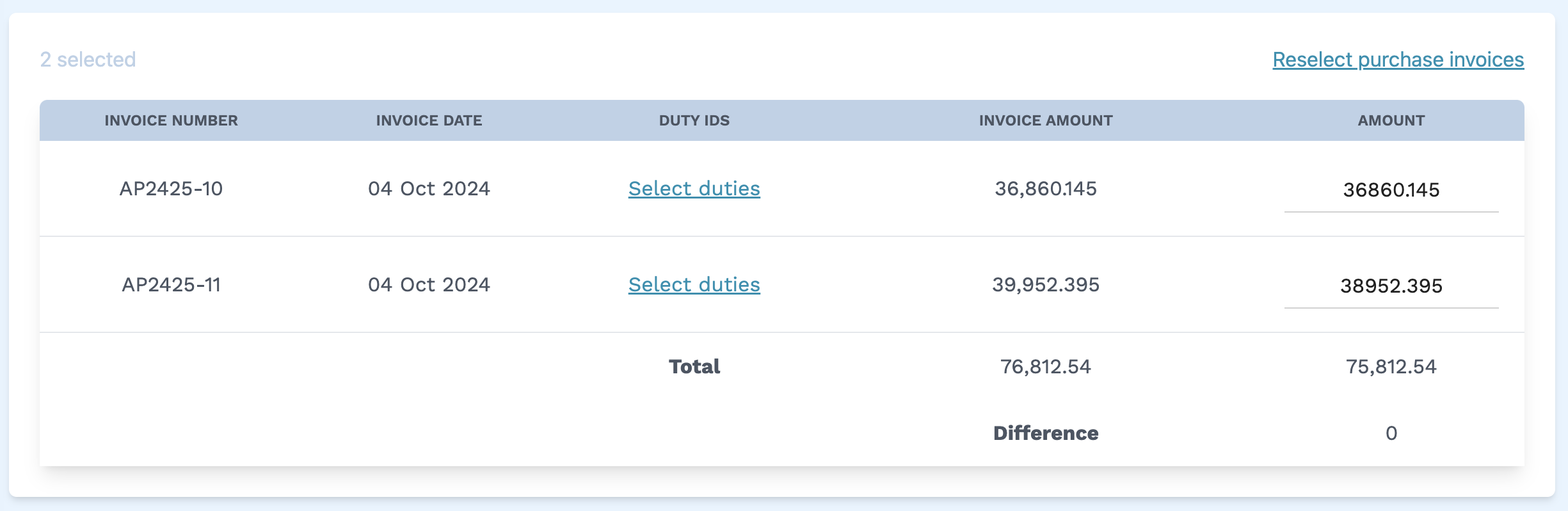
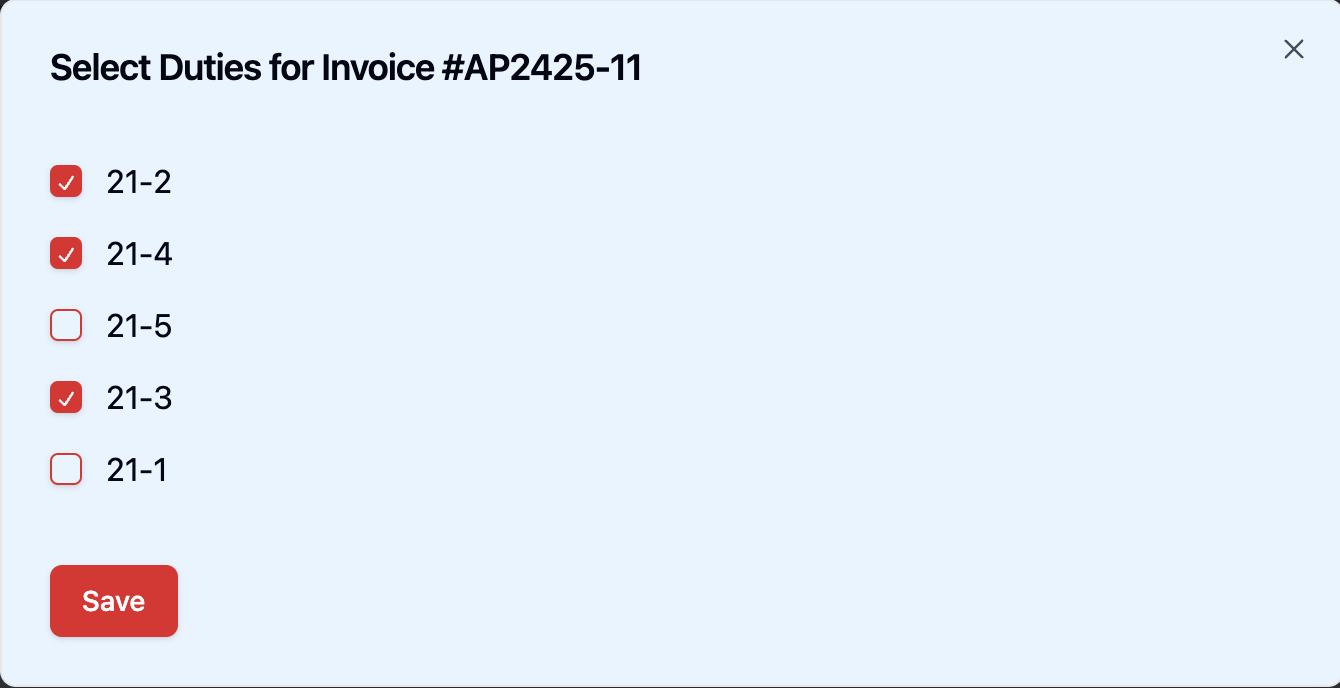
- After clicking the Select duties button a modal opens up allowing you to select the duties relevant to the Invoice you have selected. Select the checkbox on an individual duty to select it. After you have made the selection, click the Save button to save the selection and close the modal.
- The duty(s) selected in the previous step now appear under DUTY IDS column in the table.
- Then towards the right, we see an Amount column in the table. The data in the Amount column can be manually changed for each Invoice in the table.
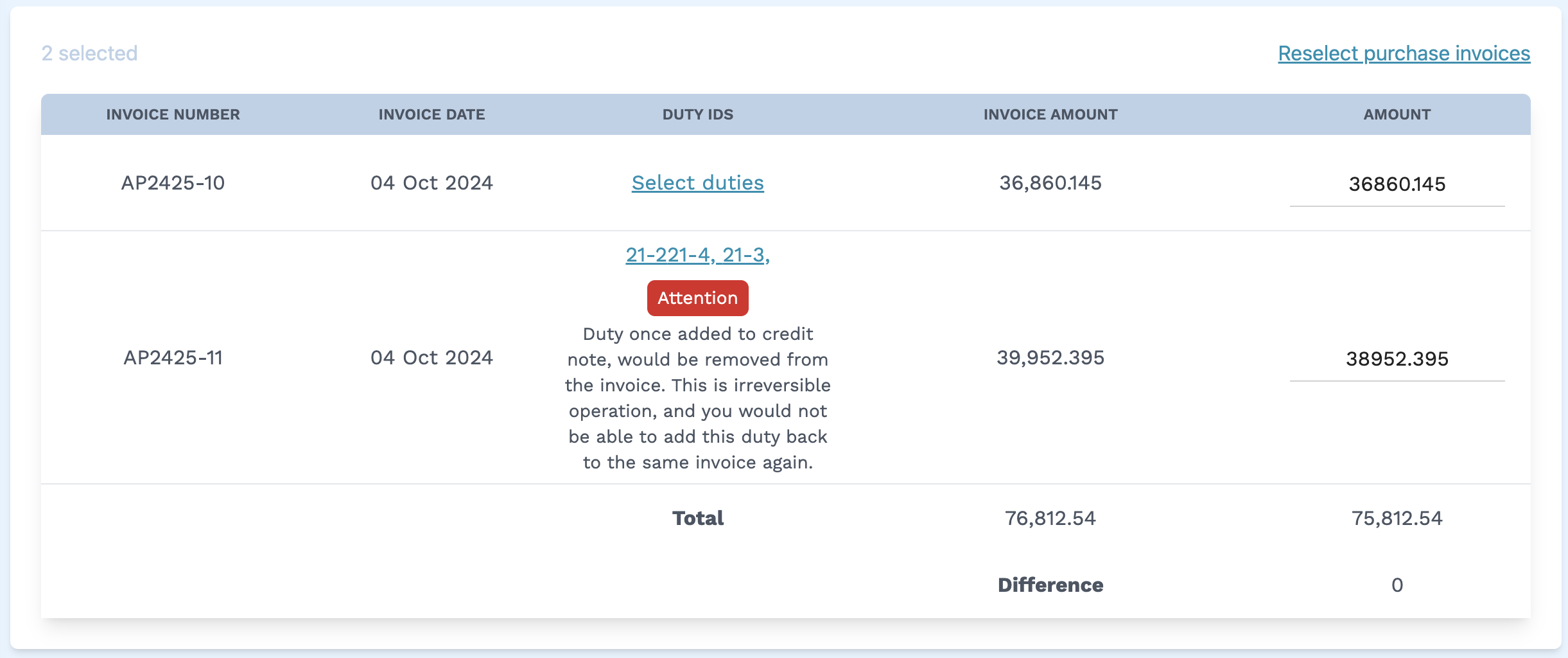
The value in the last row Difference can be added using the Credit Note Particulars section below
-
If you selected Debit as the Note Type, you need to add a Purchase Invoice. Follow the steps below
For you to be able to select a Purchase Invoice you need to make sure that you have selected an option from Supplier Group or Supplier or both above.
- Select the checkbox on an individual Purchase Invoice to select it.
- Once one or more invoices have been selected, you will see an Add Amount button.
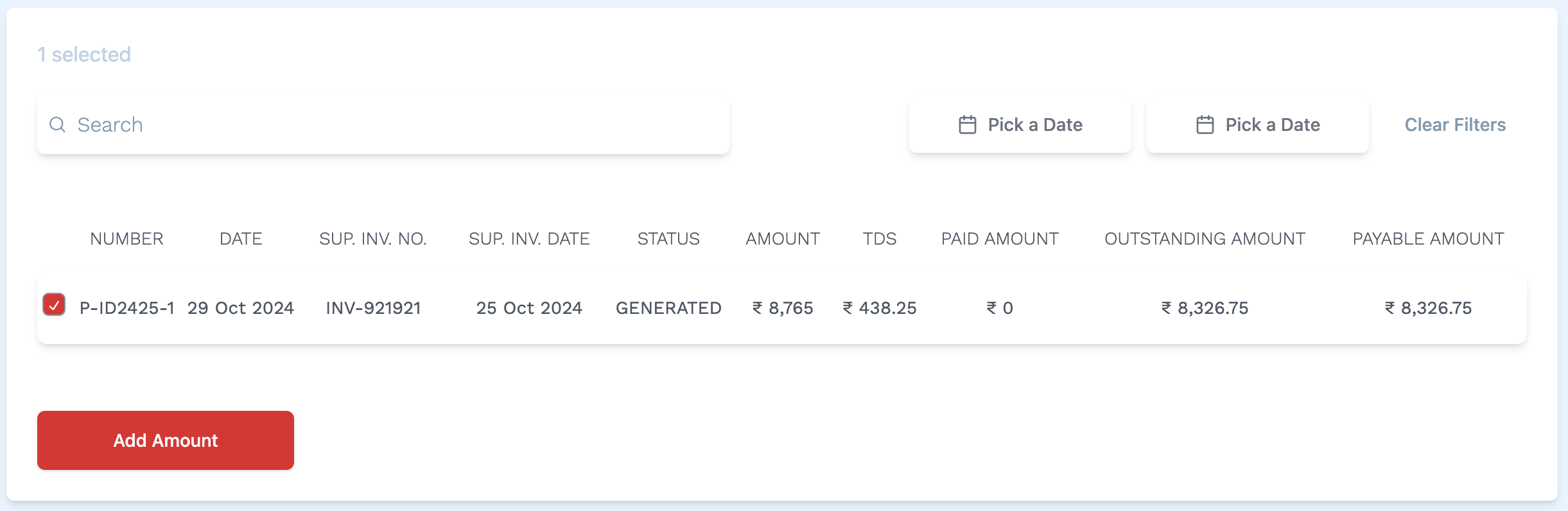
- After clicking the Add Amount button a table appears on the screen.
- Towards the right, we see an Amount column in that table. The data in the Amount column can be manually changed for each Purchase Invoice in the table.
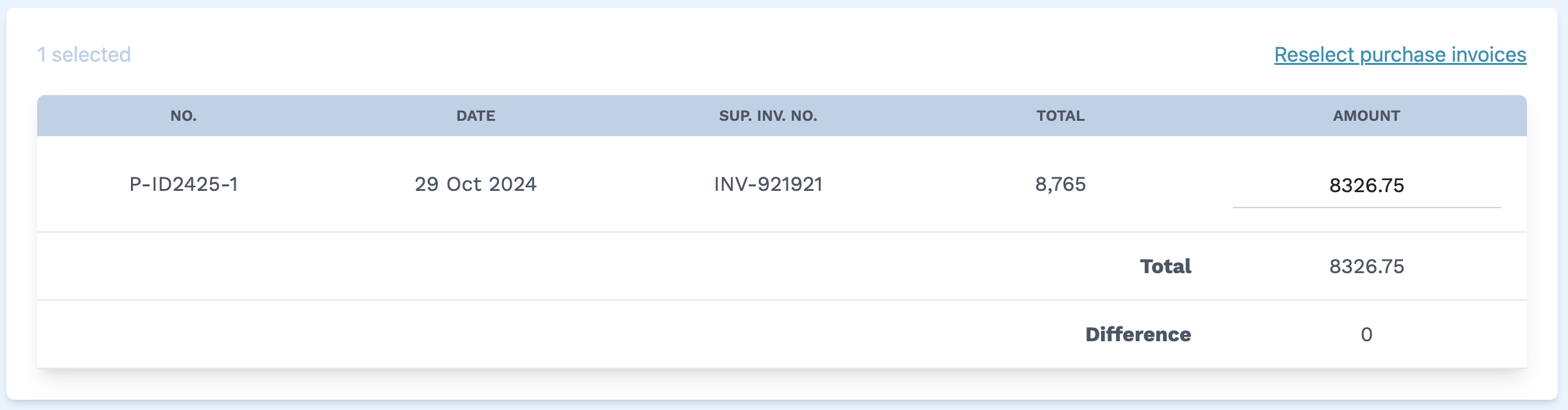
The value in the last row Difference can be added using the Debit Note Particulars section below
If you want to create both credit and debit note, then follow the steps in both the points above
3. Fill in Credit Note/Debit Note Particulars
-
If you selected Credit as the Note Type, you need to fill Credit Note Particulars. Follow the steps below
For you to be able to edit Credit Note Particulars you need to make sure that you have selected an option from Customer Group or Customer or both above, as well as an Invoice from the Invoice section above.
If the Is credit/debit note non-taxable checkbox is checked then the taxes as well as the + Add Tax button gets disabled in the Credit Note Particulars
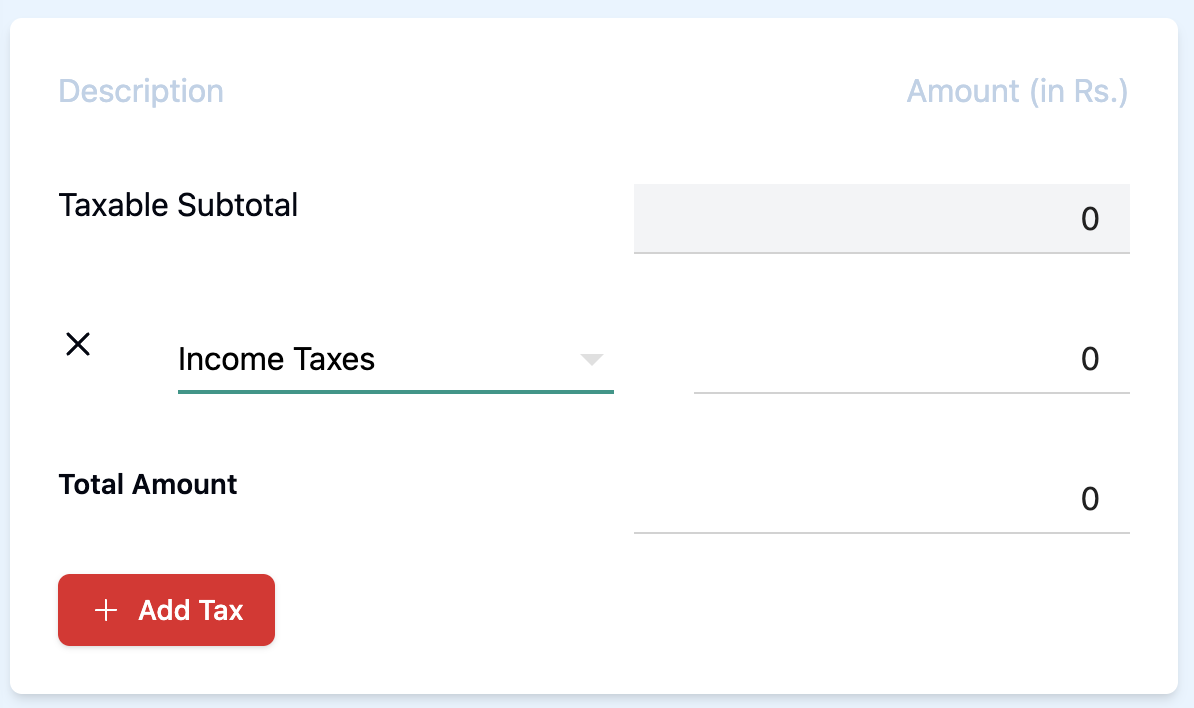
- You can click on the Total Amount input field to change the amount manually. Any changes made in the Total Amount is reflected in the Invoice section above, in the last row Difference.
- You can click on the tax dropdown to select a different tax.
- You can click the X icon on a tax to remove that tax. Any changes made to the tax will be visible in the Taxable Subtotal.
- An + Add Tax button can be seen below. If we click this button, a new row of tax gets added. We can then click on the dropdown of that tax to select taxes from the available options.
-
If you selected Debit as the Note Type, you need to fill Debit Note Particulars. Follow the steps below
For you to be able to edit Debit Note Particulars you need to make sure that you have selected an option from Supplier Group or Supplier or both above, as well as an Purchase Invoice from the Purchase Invoice section above.
If the Is credit/debit note non-taxable checkbox is checked then the taxes as well as the + Add Tax button gets disabled in the Debit Note Particulars
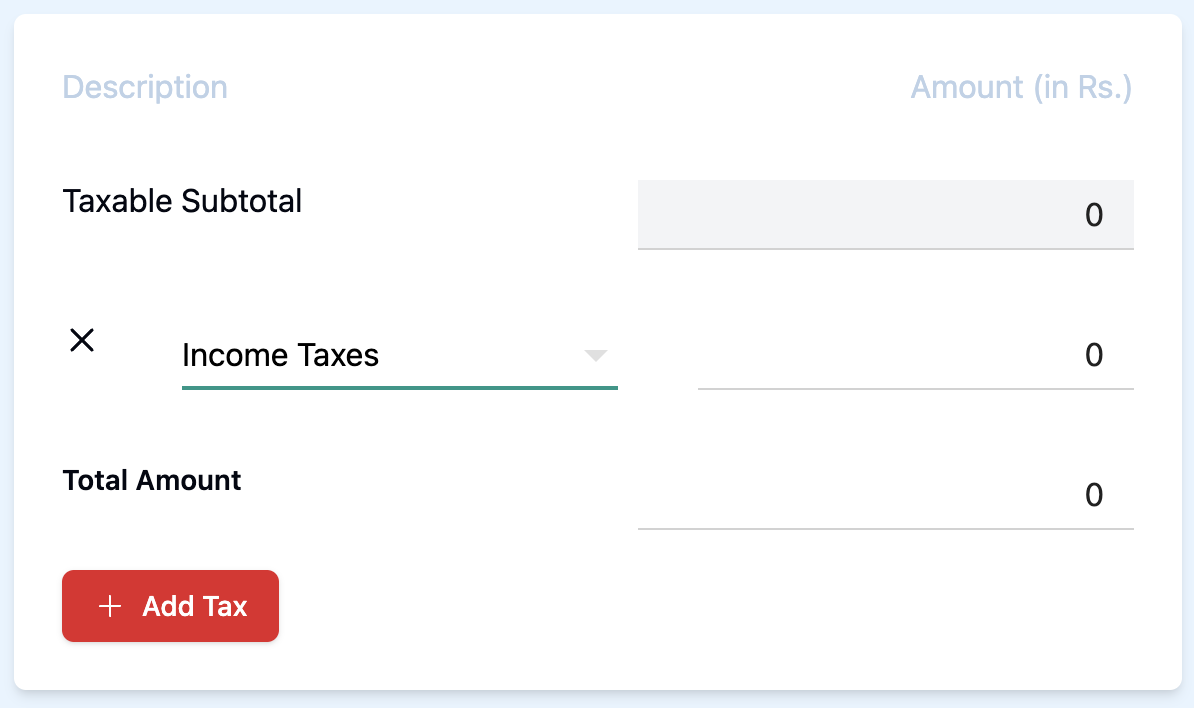
- You can click on the Total Amount input field to change the amount manually. Any changes made in the Total Amount is reflected in the Purchase Invoice section above, in the last row Difference.
- You can click on the tax dropdown to select a different tax.
- You can click the X icon on a tax to remove that tax. Any changes made to the tax will be visible in the Taxable Subtotal.
- An + Add Tax button can be seen below. If we click this button, a new row of tax gets added. We can then click on the dropdown of that tax to select taxes from the available options.
If you want to create both credit and debit note, then follow the steps in both the points above
4. Note Attachments
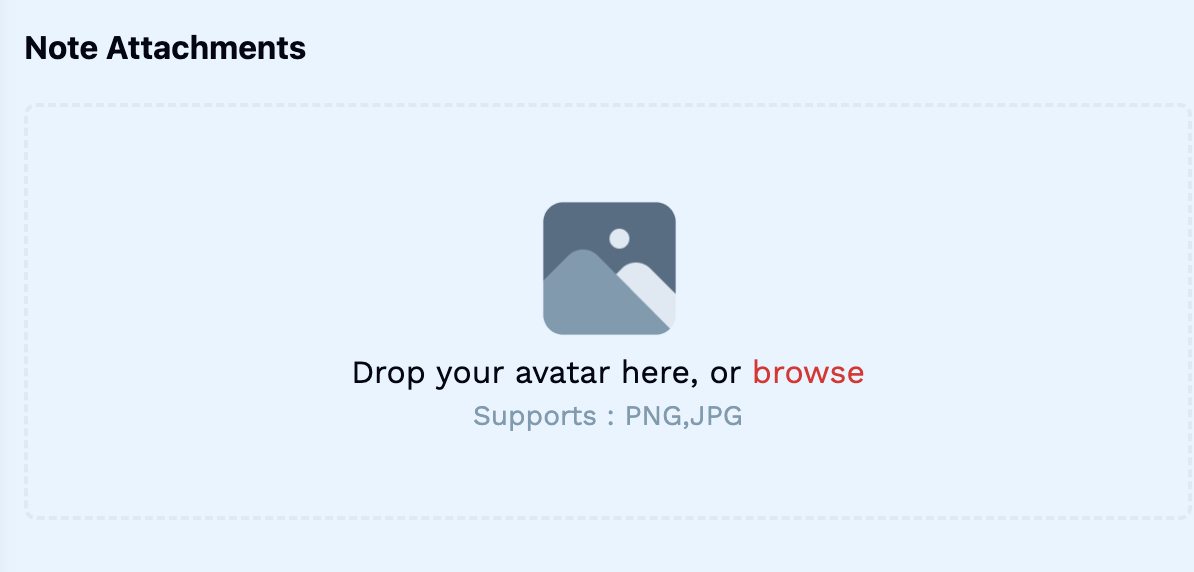
- Drop your avatar here, or browse: Click this button to open a box that allows you to select and upload a file from your computer's local storage.
5. Fill in Comment

- Comment: Enter a comment here, if you wish to add any.
6. Save the Credit/Debit Note
- After entering all details, click on the Save button to finalize the credit/debit note entry.
This completes the process of adding a new credit/debit note. Make sure all mandatory fields are filled and correct before saving the information.