Add a New Purchase Payment
This guide walks you through the steps to add a new purchase payment in the Spothire dashboard. Follow these steps to ensure that all necessary information is correctly entered.
Steps to Add a New Purchase Payment
-
Navigate to the Purchase Payment Dashboard
- Log in to the Spothire dashboard.
- Go to Operation.
- Under Operation, select Purchase Payment
-
Open the Add Purchase Payment Form
- Click on the + Add Payment button to open the form to fill the purchase payment details.
1. Select Supplier Group/ Supplier and Fill Supplier Invoice
You can select either the Supplier Group or Supplier or both, but you must select at least one

- Supplier Group: Select a supplier group from the dropdown.
- Supplier: Select a supplier from the dropdown.
2. Confirm 'Is Advance?'

- Is Advance?: Check this box to confirm that the payment has been made in advance. Leave it unchecked if the payment has not been made in advance.
3. Select a Purchase Invoice
For you to be able to select a Purchase Invoice you need to make sure that you have selected an option from Supplier Group or Supplier or both above. You also need to check the Is Advance? checkbox to be able to see the relevant purchase invoices.
- Select the checkbox on an individual Purchase Invoice to select it.
- Once one or more purchase invoices have been selected, you will see an Add Amount button.
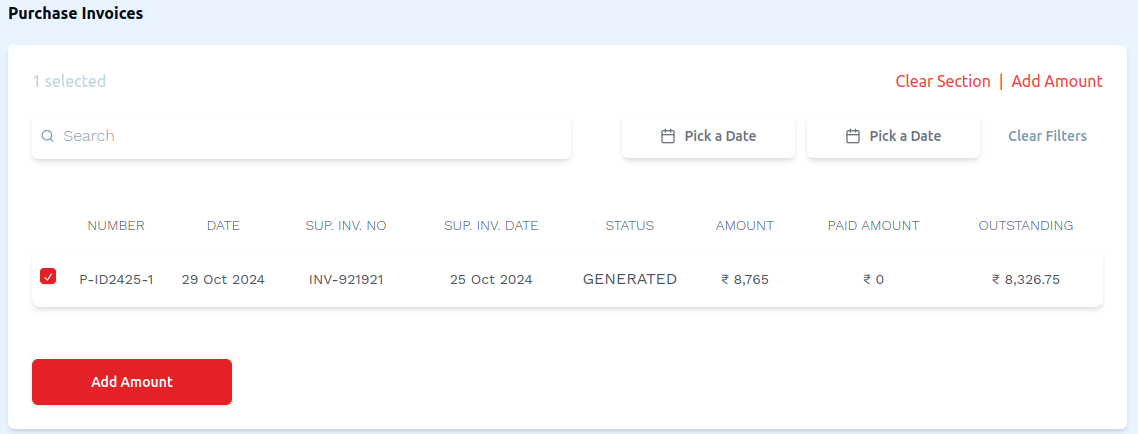
- After clicking the Add Amount button a table appears on the screen.
- We see three columns Amount, TDS and Adjustment. We can edit the values for these columns in the first row. Once editted, the values in the second row Total also change for these respective columns.
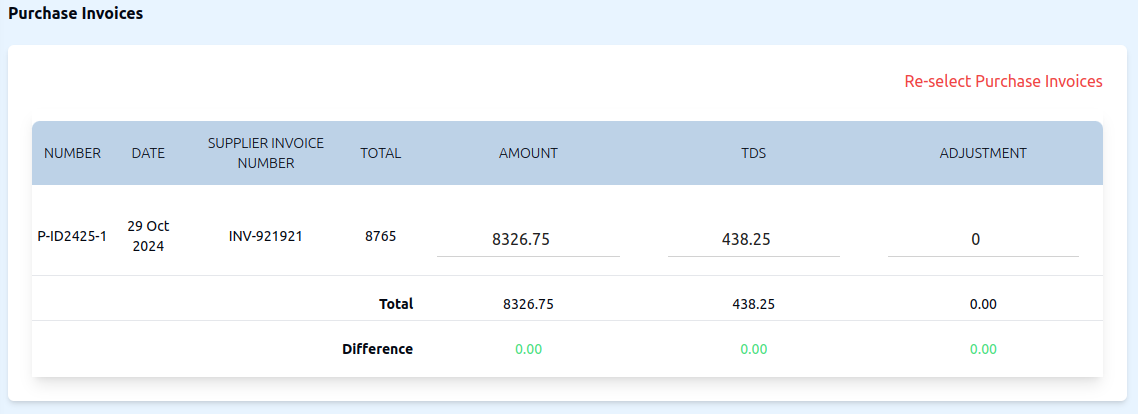
The values in the third row Difference can be added using the Description and Amount section below
4. Description and Amount
Any values you add in these three input fields will be added into the columns in the Difference row in the table above.
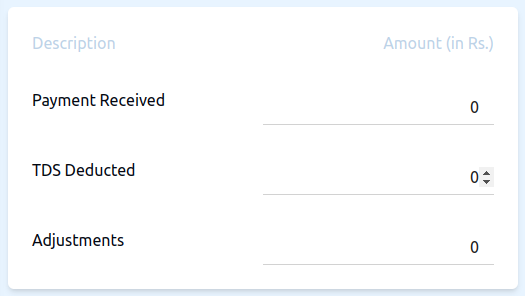
- Payment Received: Enter the amount of payment received in rupees.
- TDS Deducted: Enter the amount of TDS deducted in rupees.
- Adjustments: Enter the amount adjustments rupees.
5. Steps to add Payment Mode Details
- Using Cash
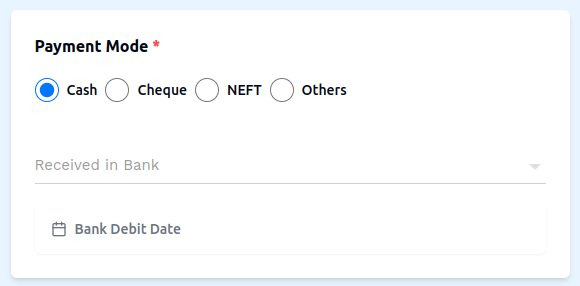
- Click on the Cash radio button.
- Received in Bank: Enter the amount of money received in the bank in rupees.
- Bank Credit Date: Select the date of bank credit.
- Using Cheque
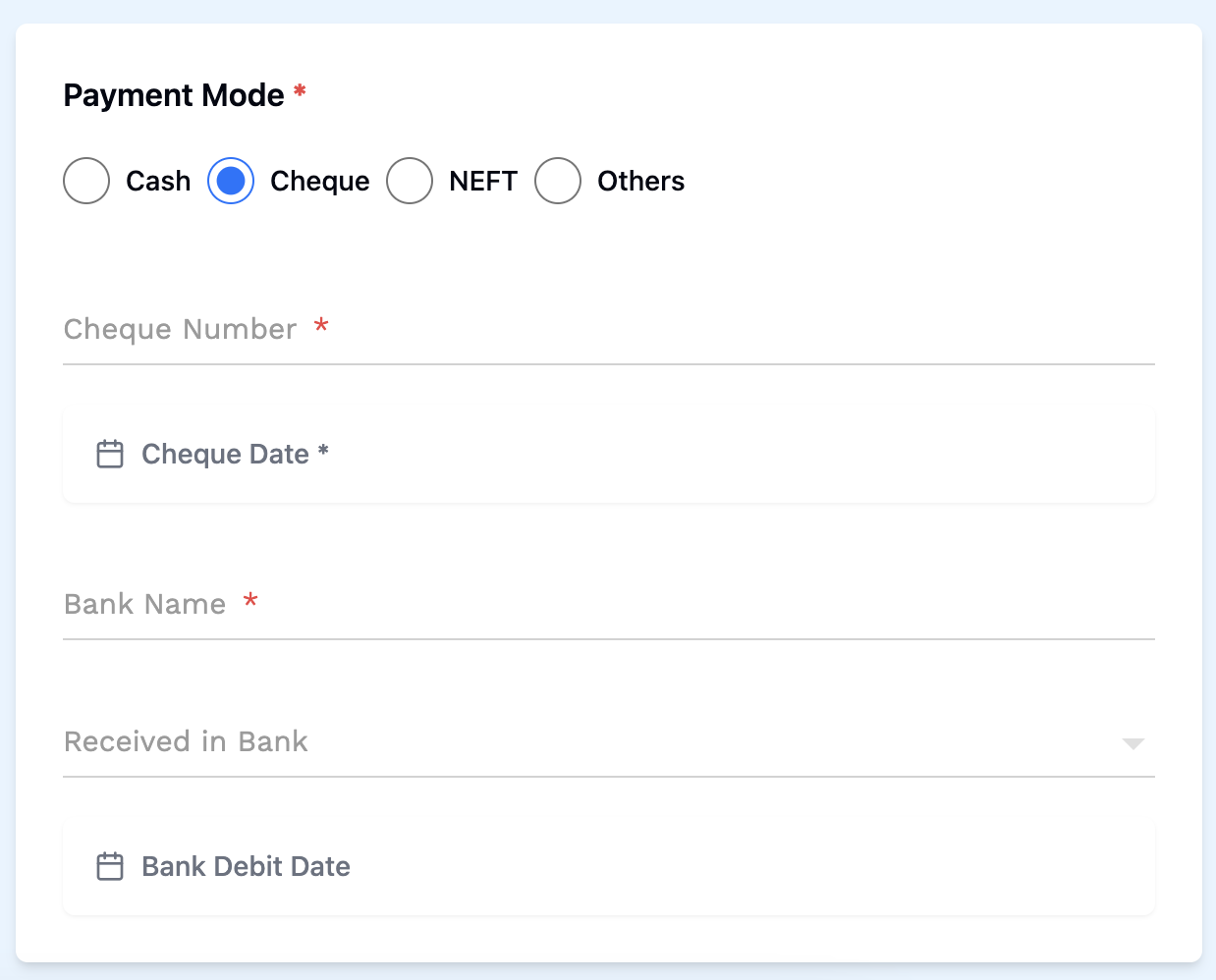
- Click on Cheque radio button.
- Cheque Number: Enter the cheque number (required).
- Cheque Date: Select the date on the cheque (required).
- Bank Name: Enter the name of the bank that the cheque is from (required).
- Received in Bank: Enter the amount of money received in the bank in rupees.
- Bank Credit Date: Select the date of bank credit.
- Using NEFT
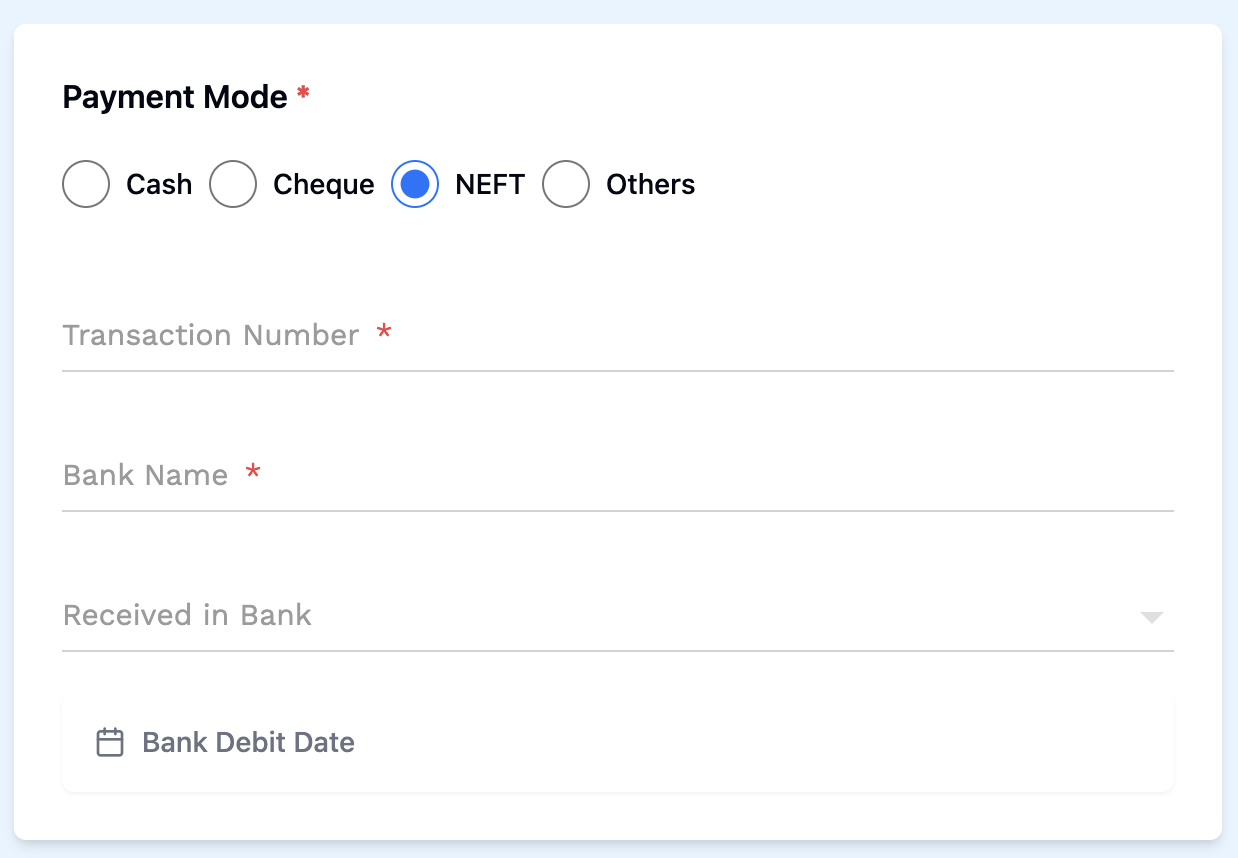
- Click on NEFT radio button.
- Transaction Number: Enter the transaction number (required).
- Bank Name: Enter the name of the bank that the NEFT is from (required).
- Received in Bank: Enter the amount of money received in the bank in rupees.
- Bank Credit Date: Select the date of bank credit.
- Using Others
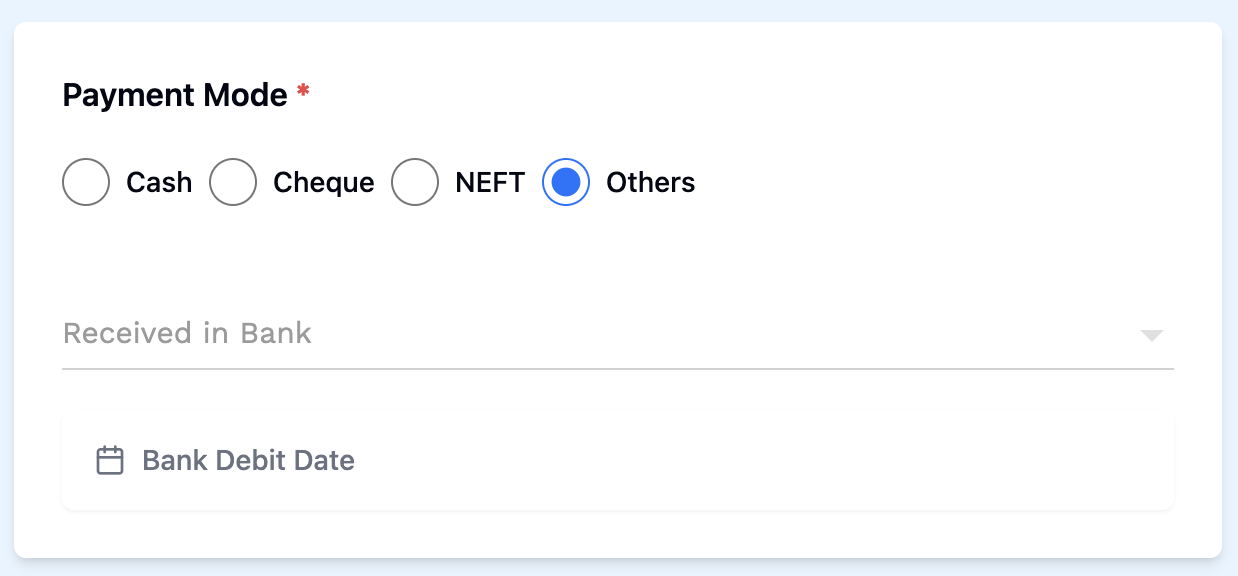
- Click on the Others radio button.
- Received in Bank: Enter the amount of money received in the bank in rupees.
- Bank Credit Date: Select the date of bank credit.
6. Fill in Comment

- Comment: Enter a comment here, if you wish to add any.
7. Save the Payment Purchase
- After entering all details, click on the Save button to finalize the payment purchase entry.
This completes the process of adding a new payment purchase. Make sure all mandatory fields are filled and correct before saving the information.