Add a New Purchase Invoice
This guide walks you through the steps to add a new purchase invoice in the Spothire dashboard. Follow these steps to ensure that all necessary information is correctly entered.
Steps to Add a New Purchase Invoice
-
Navigate to the Purchase Invoices Dashboard
- Log in to the Spothire dashboard.
- Go to Operation.
- Under Operation, select Purchase Invoices
-
Open the Add Purchase Invoice Form
- Click on the + Purchase Invoice button to open the form to fill the purchase invoice details.
1. Select Supplier Group/ Supplier and Fill Supplier Invoice
You can select either the Supplier Group or Supplier or both, but you must select at least one
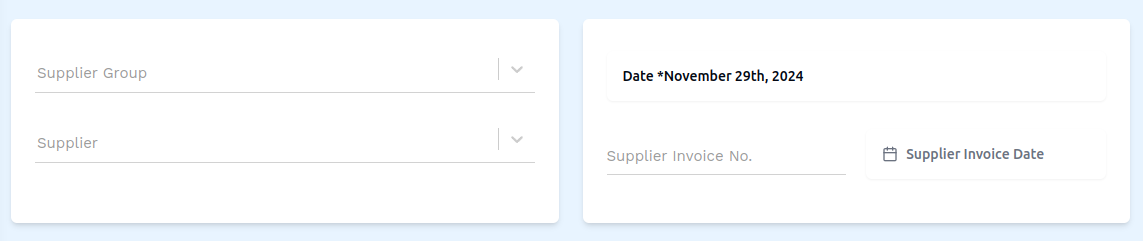
- Supplier Group: Select a supplier group from the dropdown.
- Supplier: Select a supplier from the dropdown.
- Supplier Invoice No.: Enter the supplier invoice number.
- Supplier Invoice Date: Select the supplier's invoice date.
2. Select Duties
For you to be able to select Duties you need to make sure that you have selected Supplier Group or Supplier or both above
- Select Duties: Click on this button to open up a modal that will allow you to select one or more duties.
- When the modal opens, click on a duty to select it.
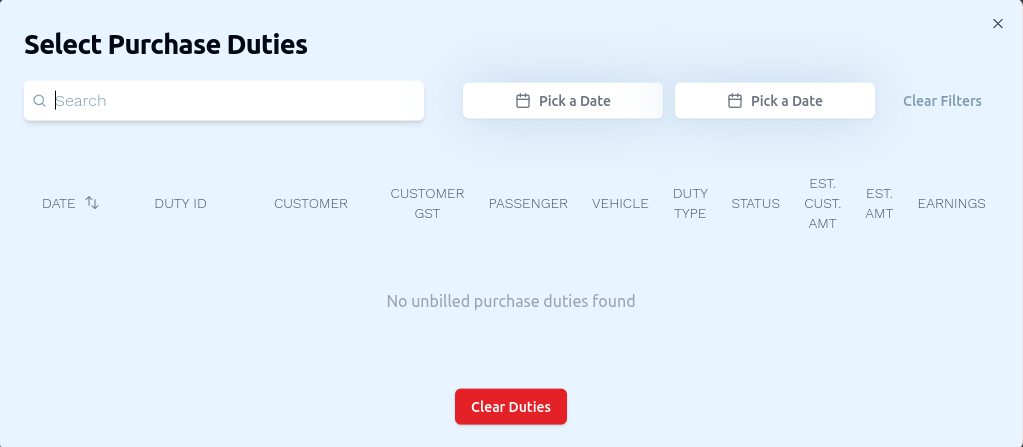
- Once you have selected the duties you wish to select, click the Save button to close to modal and finalize your selection of duties.
3. Create the Purchase Invoice
- Click Add Custom Row to create a Taxable or Non-Taxable row. In this Taxable or Non-Taxable row, you will see two input fields Charges and Amount where you can enter a name for the charges on the left and a number for the amount of charges on the right.


For you to be properly use the Add Duties button, you need to make sure that you have selected Supplier Group or Supplier or both above
- Click Add Duties to open up a modal that will allow you to select one or more duties. When the modal opens, click on a duty to select it. Once you have selected the duties you wish to select, click the Save button to close to modal and finalize your selection of duties.
- Click Add Credit/Debit Note to select a credit/note and add it to the invoice.
- Click Add Tax to create a row of tax. This tax row has a dropdown. Upon opening this dropdown, you'll see several options. Selecting an option from this dropdown, for example 'CGST 2.5%', automatically adds '2.5' in the rate column in the tax row. The tax is then calculated on this '2.5%'


- Click Add TDS to add a row for the tax deducted at source. In this TDS row, you will see one input field Rate where can you enter a percentage value for the TDS.


- Click Add Discount to create a row of discount. In this discount row, you will see one input field Rate where can you enter a percentage value for the discount.


4. Select Tax Classification
- Tax Classification (Nature of Transaction): Select the nature of transcation, i.e tax classification from the dropdown.
5. Create the Purchase Invoice
- After entering all details, click on the Create Purchase Invoice button to finalize the invoice entry.
This completes the process of creating a new purchase invoice. Make sure all mandatory fields are filled and correct before saving the information.