Add a New Booking
This guide walks you through the steps to add a new booking in the Spothire dashboard. Follow these steps to ensure that all necessary information is correctly entered.
info
After you add a Booking, it will show up in the Booked tab under Duties. Click here to learn how to view Booked duties.
Steps to Add a New Booking
- Navigate to the Add Booking Dashboard
- Log in to the Spothire dashboard.
- Go to Masters.
- Under Masters, select Add Booking
- This opens the form to fill the booking details.
1. Steps to Select or Add a New Customer

-
Select a Customer
- Select Customer: Select the name of a customer from the dropdown.
-
Add a New Customer
- Click on the + New Customer button.
- Follow the steps at Add a New Customer
2. Fill in Booked By / Passenger Details
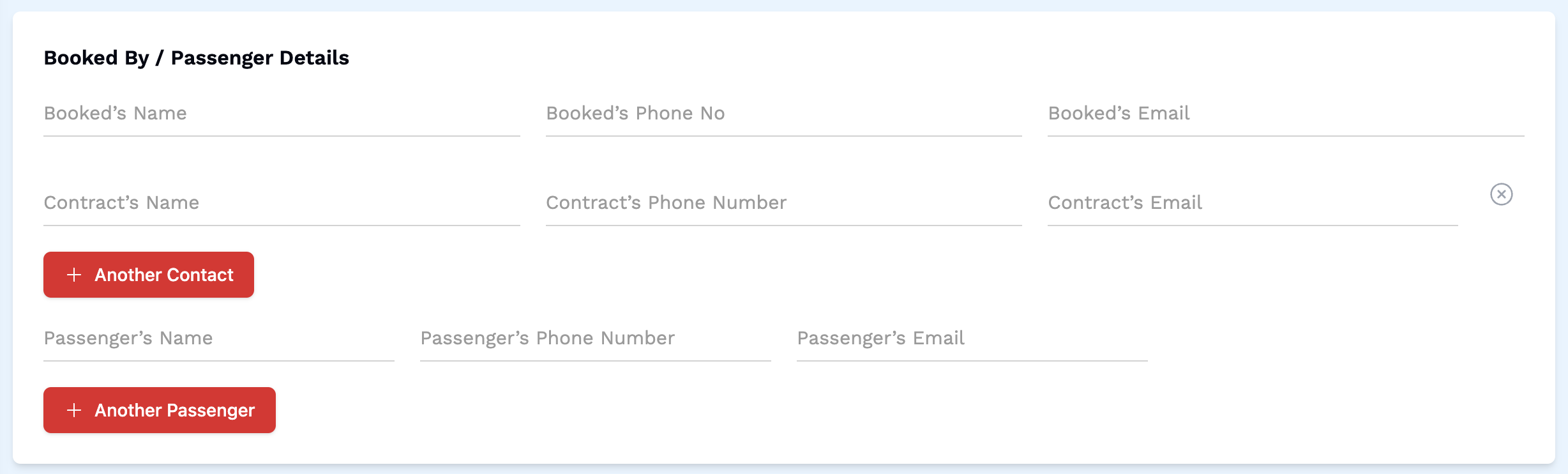
- Booked's Name: Enter the name of the booker.
- Booked's Phone No: Enter the phone number of the booker.
- Booked's Email: Enter the email of the booker.
- Contact's Name: Enter the name of the contact.
- Contact's Phone Number: Enter the phone number of the contact.
- Contact's Email: Enter the email of the contact.
Click the + Another Contact if you wish to add more contacts.
- Passenger's Name: Enter the name of the passenger.
- Passenger's Phone Number: Enter the phone number of the passenger.
- Passenger's Email: Enter the email of the passenger.
Click the + Another Passenger if you wish to add more contacts.
3. Fill in Booking Details
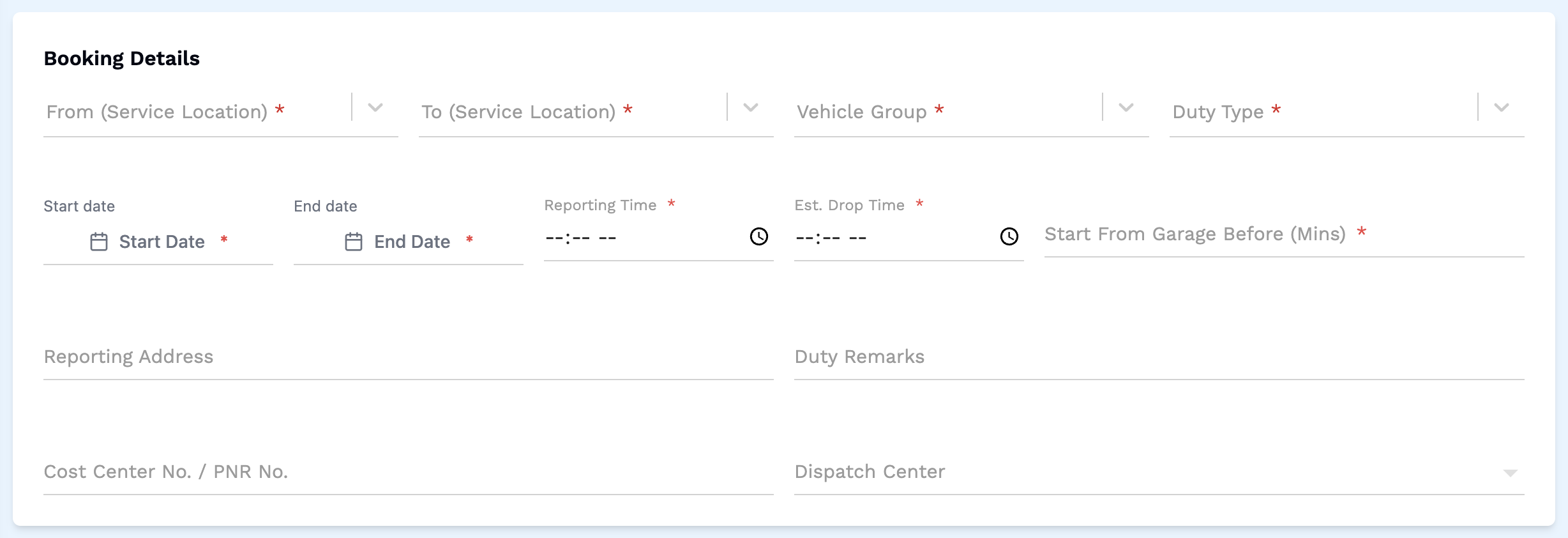
- From (Service Location): Select the location where the booking is from, from the dropdown (required).
- To (Service Location): Select the location where the booking is to, from the dropdown (required).
- Vehicle Group: Select the vehicle group from the dropdown (required).
- Duty Type: Select the type of duty from the dropdown (required).
- Start Date: Select the start date of the booking (required).
- End Date: Select the end date of the booking (required).
- Reporting Time: Select the reporting time for the booking by clicking on the clock icon (required).
- Est. Drop Time: Select the estimated drop time for the booking by clicking on the clock icon(required).
- Start From Garage Before (Mins): Select how early to start from garage in minutes (required).
- Reporting Address: Enter the full reporting address.
- Duty Remarks: Enter duty remarks, if any.
- Cost Center No. / PNR No.: Enter the cost center or PNR number.
- Dispatch Center: Select the dispatch center from the dropdown.
4. Fill in Billing Details
- Using Default Prices

- Click on Use Default Prices to use default prices.
- Bill To: Select an option from the dropdown (required).
- Using Settle Rates

- Click on Settle Rates to use settle rates.
- Bill To: Select an option from the dropdown (required).
- Price: Enter a price (required).
- Per Extra Km Rate: Enter the rate per extra kilometer.
- Per Extra Hr Rate: Enter the rate per extra hour.
5. Fill in Additional Details

- Driver / Supplier Remarks: Enter driver or supplier remarks, if any.
- Label: Enter a label.
- Mark as unconfirmed booking: Check this box to mark this booking as unconfirmed.
6. Save the Booking
- After entering all details, click on the Book Now button to finalize the booking entry.
This completes the process of adding a new booking. Make sure all mandatory fields are filled and correct before saving the information.