Close a Duty
This guide walks you through the steps to Close duties in the Spothire dashboard.
Steps to Close a Duty
- Navigate to the Alloted duties Dashboard
- Log in to the Spothire dashboard.
- Click on Duties.
- Under Duties, select Dispatched
1. Open the Close Duty page

- Hover on Status column of a dispatched duty.
- This will show a Close duty button.
- Clicking on this button will open the Close Duty page where you need to fill the form to close a duty
Steps to Fill the Close Duty Form
1. Fill the Duty Details
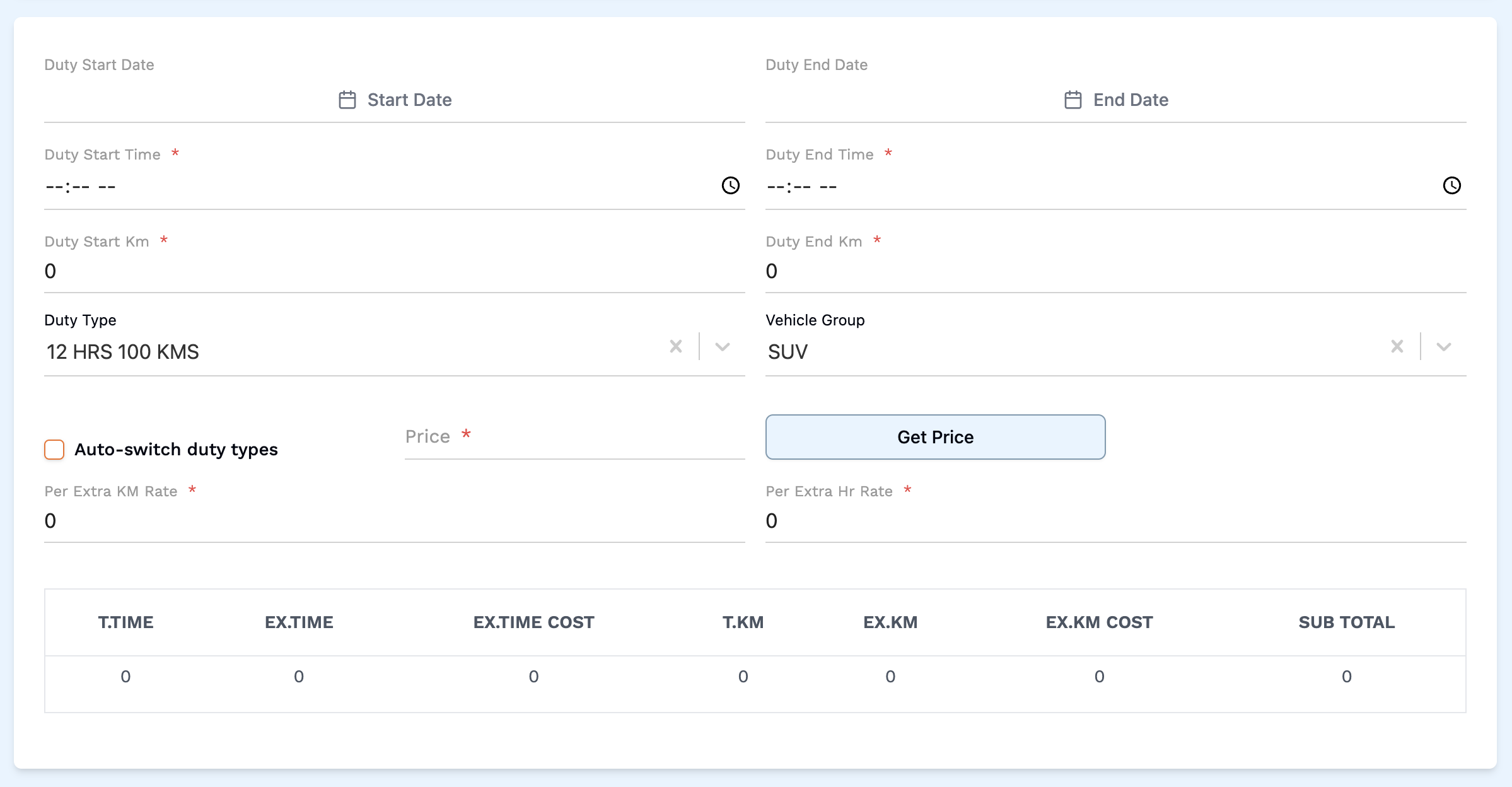
- Duty Start Date: Select a start date for the duty.
- Duty End Date: Select an end date for the duty.
- Duty Start Time: Select a start time for the duty. (required)
- Duty End Time: Select an end time for the duty. (required)
- Duty Start Km: Select the starting km for the duty. (required)
- Duty End Km: Select the ending km for the duty. (required)
- Duty Type: Select a Duty Type from the dropdown.
- Vehicle Group: Select a Vehicle Group from the dropdown.
- Auto-switch duty types: Check or uncheck this checkbox based on whether you wish to auto check duty types or not.
- Price: Enter the price
- Per Extra KM Rate: Enter the rate per extra kilometer for the duty.
- Per Extra HR Rate: Enter the rate per extra hour for the duty.
2. Fill the Chargeable Driver Allowances

- Daily Allowance: Enter a daily allowance for the driver.
- Over Time: Enter the over time allowance for the driver.
- Outstation Allowance: Enter the over time outstation allowance for the driver.
- Outstation Overnight Allowance: Enter the over time outstation overnight allowance for the driver.
- Night Allowance: Enter the night allowance for the driver.
- Sunday Allowance: Enter the sunday allowance for the driver.
- Extra Duty Allowance: Enter the extra duty allowance for the driver.
- Early Start Allowance: Enter the early start allowance for the driver.
3. Add Billing Items
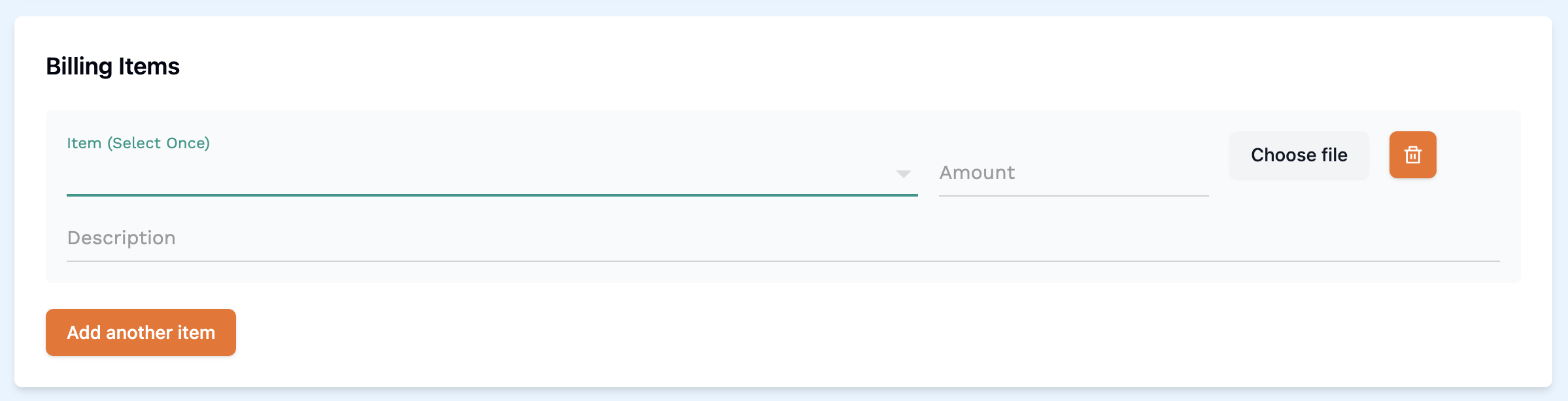
- Item: Select an item from the dropdown.
- Amount: Enter the billing amount of the item.
- Choose File: Click on choose file to open the file explorer and choose a file to upload, if you wish to upload any files.
- Description: Enter a description for the billing item, if needed.
- Add Another Item: Click on this button if you wish to add one more billing item.
4. Upload Scanned Duty Slip
- Click on the Drop your avatar here, or browse button.
- This will open your device's file explorer where you can find and select the scanned duty slip to upload
5. Finally, Close the Duty
- Remark: Enter any remarks that you have about the duty.
- Finally, click the Close and view duty slip button.
This completes the process of closing a duty. Make sure all mandatory fields are filled and correct before saving the information.
info
After closing a duty, it will show up under the Completed tab in the Duties listing page.