Allot a Duty
This guide walks you through the steps to allot duties in the Spothire dashboard.
Steps to Allot a duty
- Navigate to the Booked duties Dashboard
- Log in to the Spothire dashboard.
- Click on Duties.
- Under Duties, select Booked
- Hover on the status column of a duty and click the Allot button. This will open the page to Allot the duty
1. Steps to Select Send Duty to a Network Supplier (Follow this step only if you wish to send a duty to a network supplier)
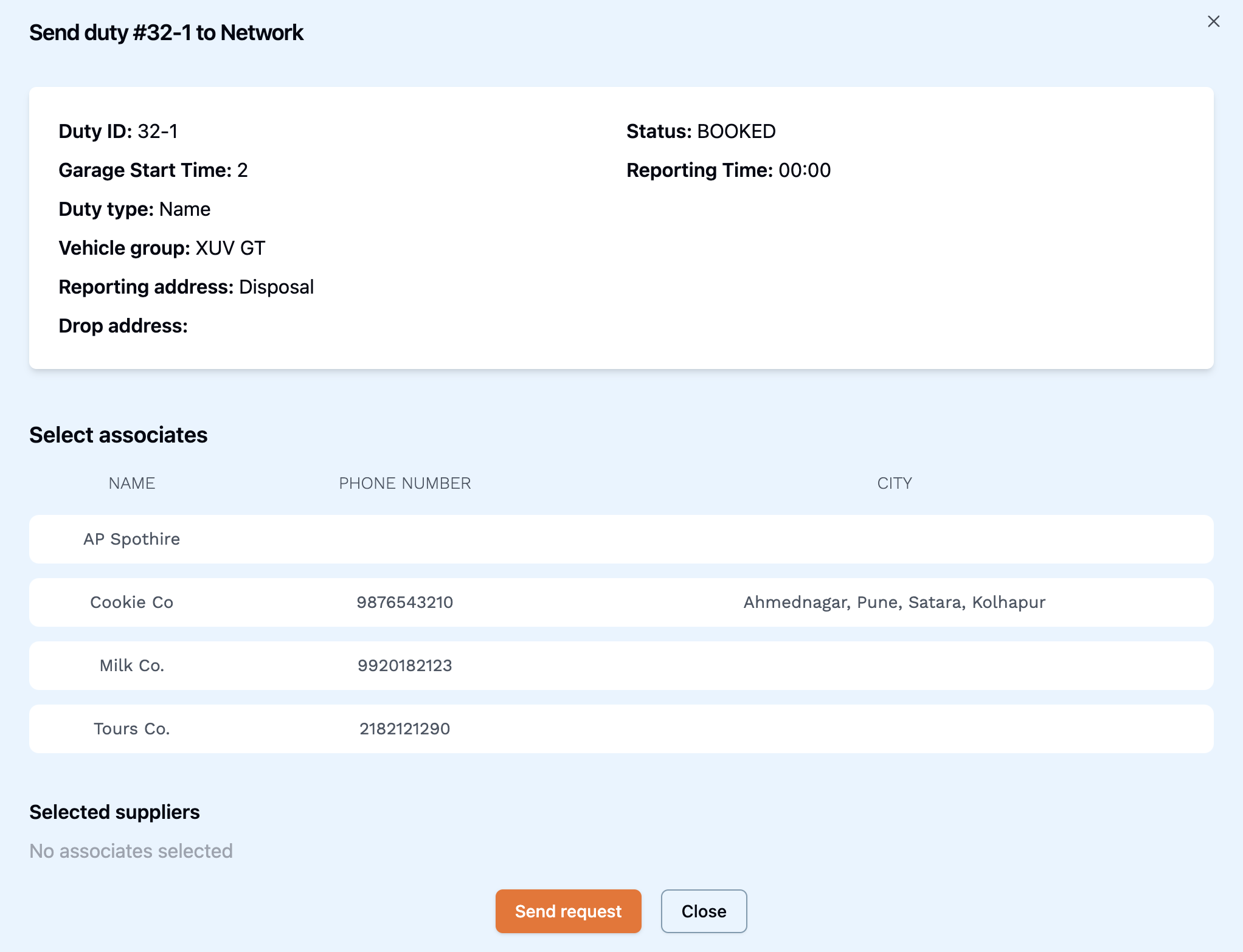
- Click on the Send To Supplier button.
- This opens a modal where you can select the supplier(s) to whom you wish to send the duty.
- Simply click on one or more suppliers to select them and then click on the Send Request button at the bottom of the modal to send a request to the supplier(s) to accept the duty you have sent them.
2. Steps to Allot a Vehicle to the Duty

- Select the Vehicle tab.
- Click on a Vehicle listing to allot it to the duty.
- Clicking on any available Vehicle listing will immediately allot it to the duty and navigate you back to the Booked duties page.
3. Steps to Allot a Supplier to the Duty

- Select the Supplier tab.
- Click on a Supplier listing to allot it to the duty.
- Clicking on any available Supplier listing will immediately allot it to the duty and navigate you back to the Booked duties page.
info
After alloting either the Vehicle or Supplier to the duty, it will show up under the Alloted tab in the Duties listing page.